
Receive WhatsApp Incoming Messages in Google Spreadsheet – Real-Time Webhook Integration
Looking to capture WhatsApp replies directly into a Google Spreadsheet? With SMSGatewayCenter's real-time WhatsApp webhook integration, you can automatically log every incoming WhatsApp message into Google Sheets without writing a single line of code. This powerful solution helps businesses streamline responses, track customer interactions, and maintain a centralized message log — all inside your existing spreadsheet workflow. Whether you're managing support tickets, lead replies, or order confirmations, this integration boosts efficiency and saves valuable time.
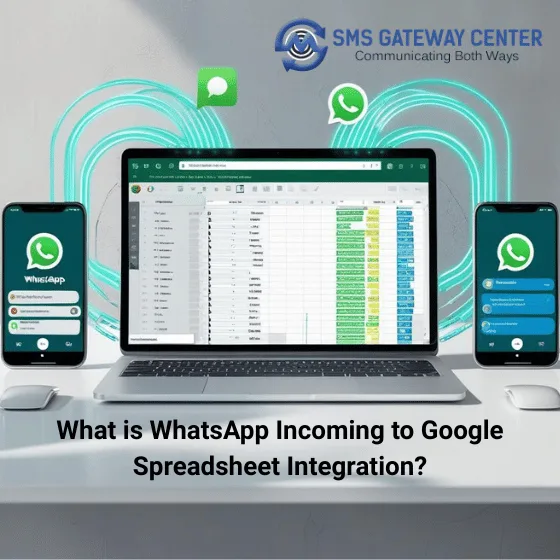
📩 What is WhatsApp Incoming to Google Spreadsheet Integration?
WhatsApp Incoming Message to Google Spreadsheet is a seamless integration offered by SMSGatewayCenter that allows businesses to capture customer replies from WhatsApp and store them directly in a Google Sheet in real-time. This is achieved using a simple webhook URL and our powerful automation infrastructure.
This integration is especially useful for businesses that want to:
- 👥 Track and log incoming WhatsApp replies from customers, leads, or prospects.
- 📊 Maintain a centralized record of chats for analysis, ticketing, or CRM updates.
- 📁 Enable team-wide visibility of WhatsApp conversations in a shared spreadsheet.
- ⚡ Eliminate manual copy-paste or the need to check devices constantly.
With a few clicks, you can automate your messaging workflow and boost efficiency across support, sales, or operations teams—all using your familiar Google Sheets environment.
Simplify your messaging operations — send or receive WhatsApp via Google Spreadsheet effortlessly with SMSGatewayCenter.
📥 Receive Real-Time WhatsApp Replies into Google Spreadsheet
🚀 Send & Receive WhatsApp from Google Sheets
In this quick tutorial, you'll learn how to capture incoming WhatsApp messages in real-time into a Google Spreadsheet using a lightweight Google Apps Script. This method leverages Apps Script — Google's cloud-based JavaScript platform — to automate workflows without requiring coding expertise.
With our prebuilt script, you can instantly log WhatsApp messages from your assigned long code number, enabling easy tracking, auditing, or customer support follow-up — all within your familiar spreadsheet interface.
✅ Prerequisites to Get Started
- A valid SMSGatewayCenter WhatsApp API account with active credits and a paid subscription.
- A working Google Account with access toGoogle Spreadsheets.
- At least one keyword configured on your WhatsApp long code to capture incoming replies via webhook.
Ready your Google Spreadsheet
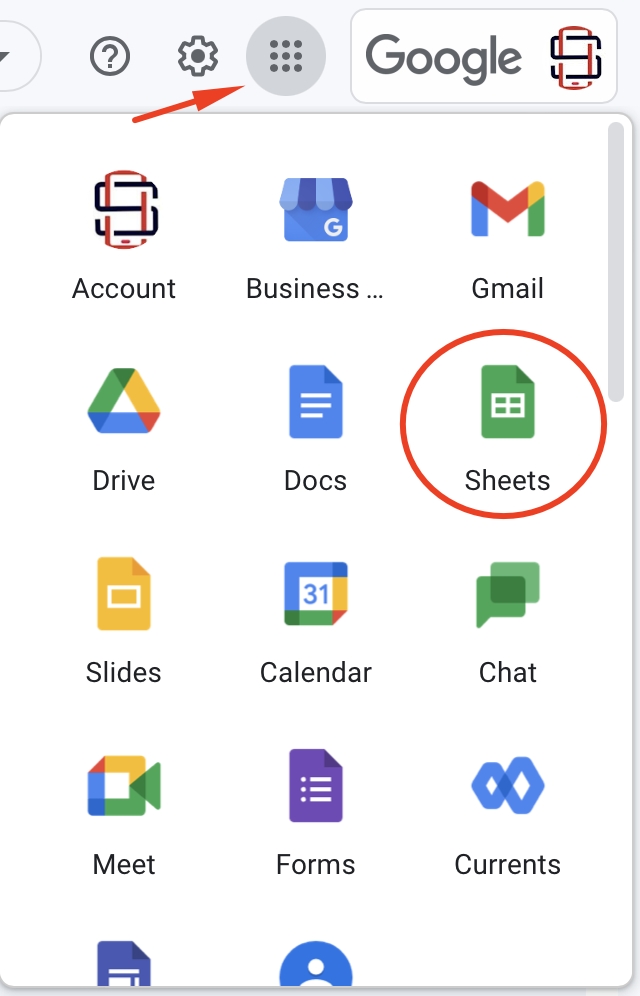
Go to your Google account, click on Sheets.
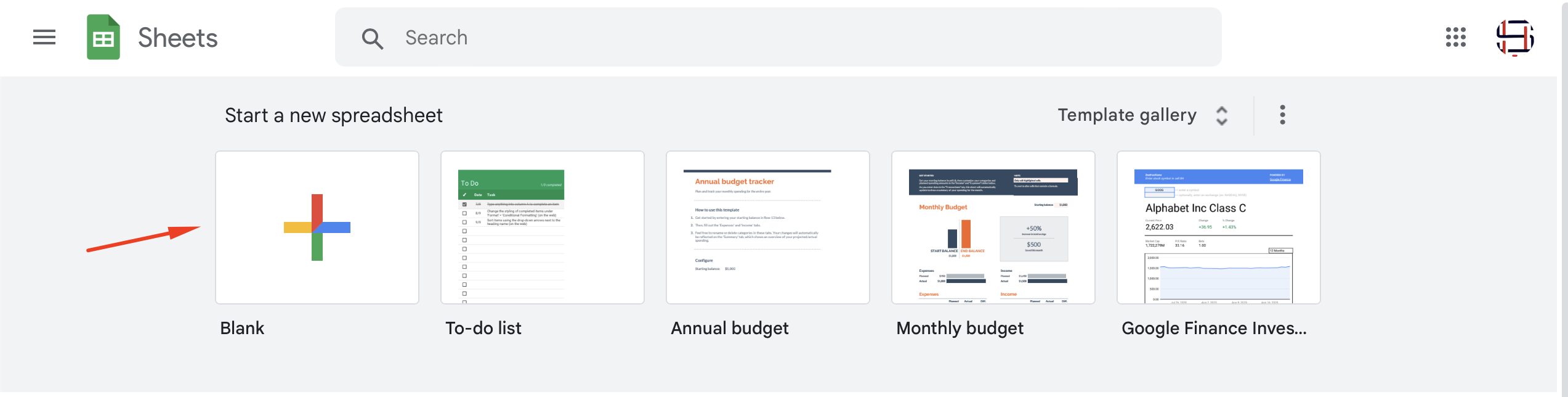
A new tab will be opened where you can start a new spreadsheet, Click on Blank from shown template gallery as shown below.
A new blank spreadsheet will open. Rename the Sheet from Untitled spreadsheet to Incoming WhatsApp. Now add headers in the sheet. In row 1 of the spreadsheet, add column titles:
- Column 1 (A) = Date
- Column 2 (B) = WABA (WhatsApp Number)
- Column 3 (C) = Mobile
- Column 4 (D) = Keyword
- Column 5 (E) = Circle
- Column 6 (F) = Operator
- Column 7 (G) = Received Time
- Column 8 (H) = Message
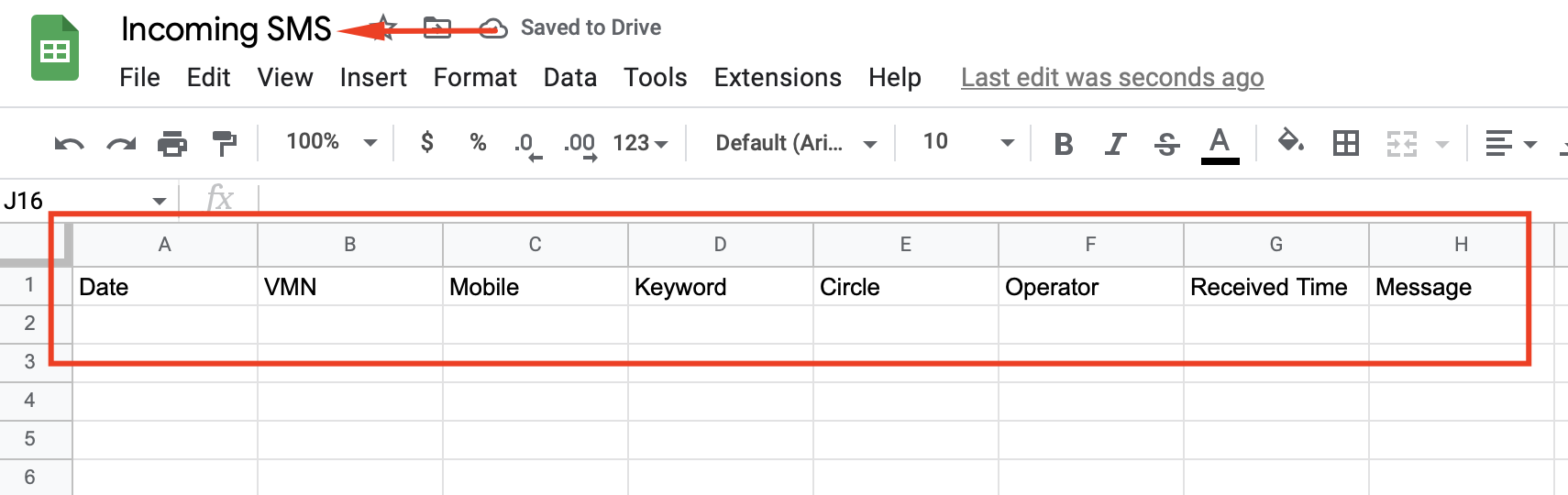
Once you are done with column header in sheets, now head on to add our ready script. You can get our complete downloadable code, once you are recharged with your account from our team.
Go to Toolbar, Click on Extensions, then Apps Script.
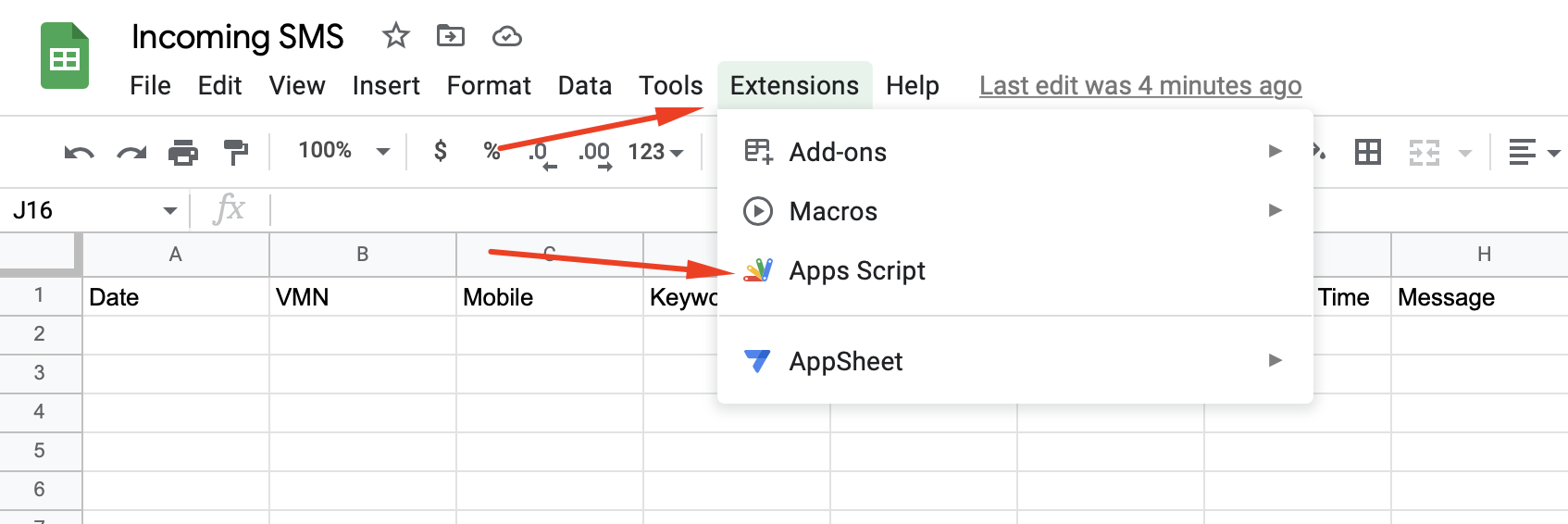
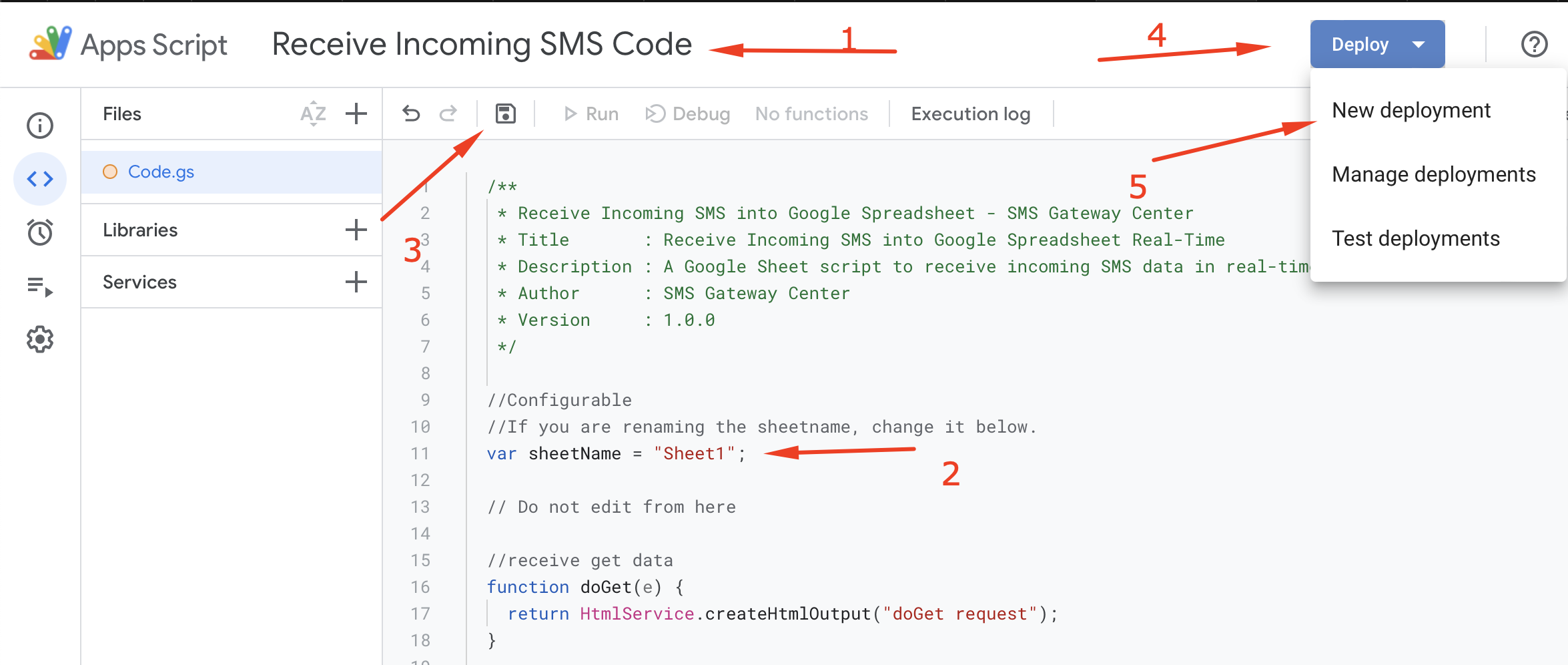
A new Apps Script tab will open. Rename Untitled project to Receive Incoming WhatsApp Code. By default, code.js editor will be shown.
Remove all codes from the editor window. Copy and paste the given code from our team on this window and edit the following constants. Update Sheet1 to as you have named your sheet, if you have not changed the sheet name, then leave it as it is. Once editing is done, click on save button. On the top right, Click on Deploy and click on New deployment.
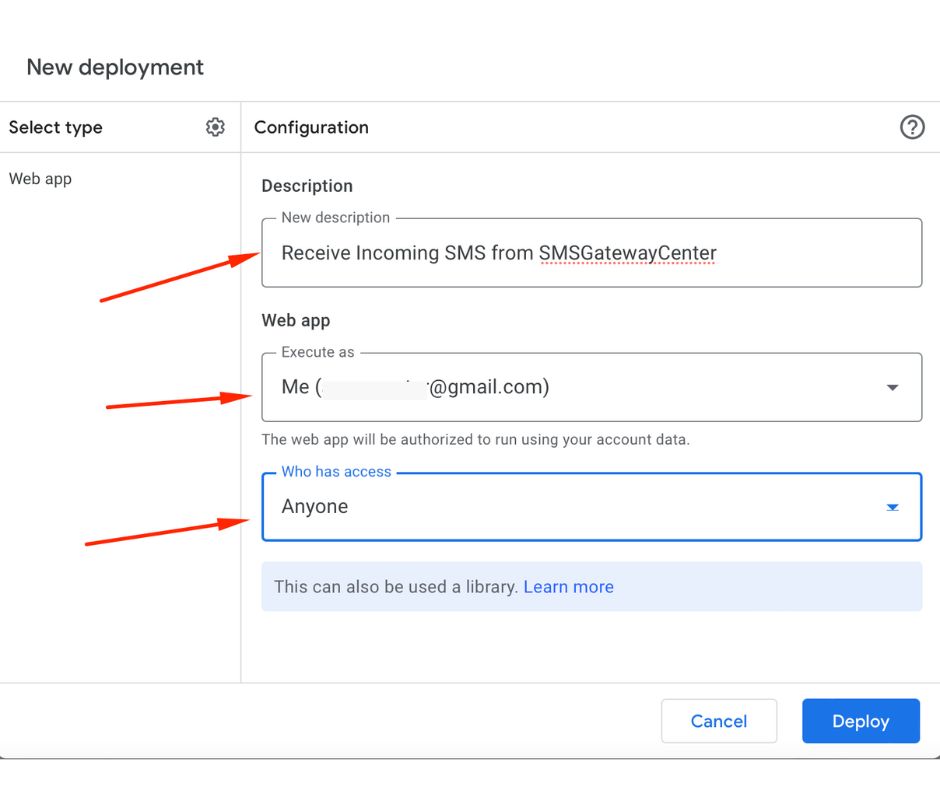
A pop window will open, click on Cog icon, you will be shown with options. Click on Web app, and now you will be shown with options.
- Description: Enter a short description.
- Execute as: Select Me.
- Who has access: Select Anyone from the drop-down options.
At the bottom, click on Deploy.
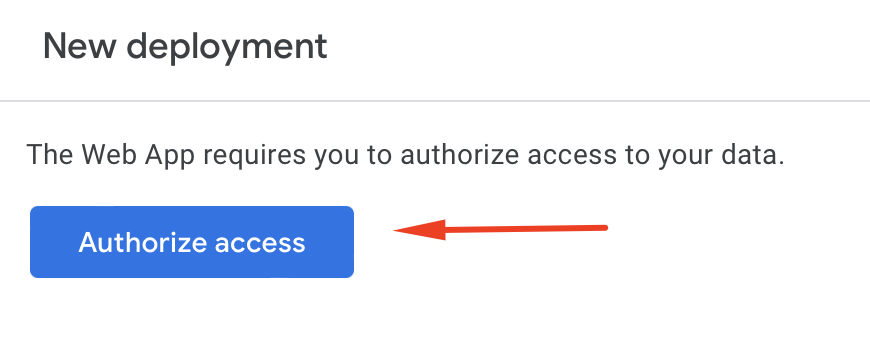
Google requires permission, so it pops up a confirm window to authorize your account with the added script. Click on Authorize access.
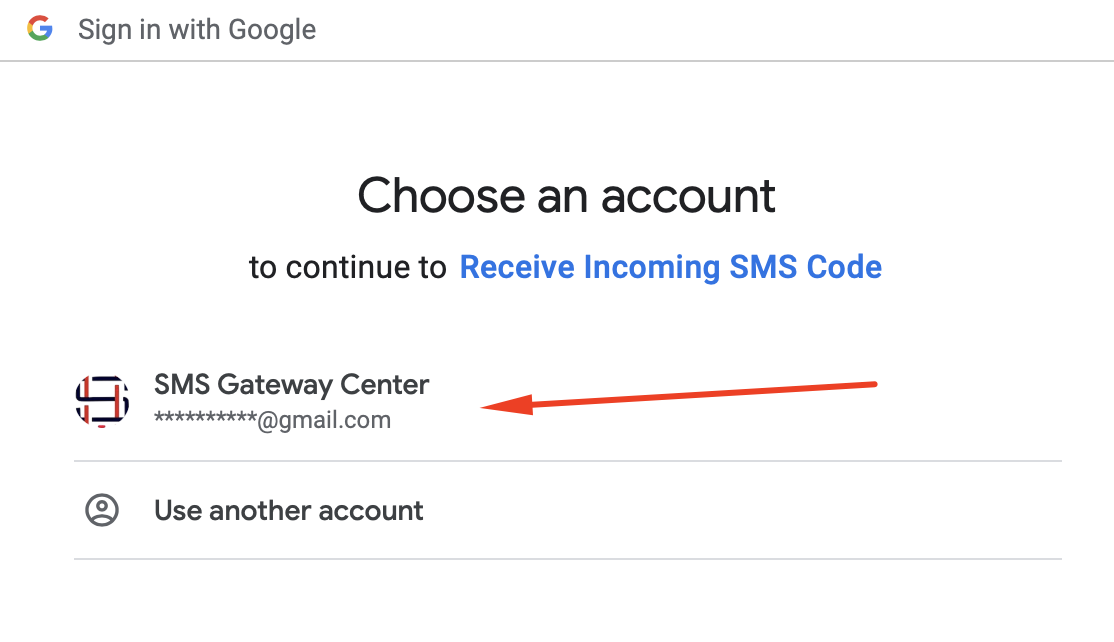
By continuing, it will take you to select your Google account, select the account which you have used for your sheet.
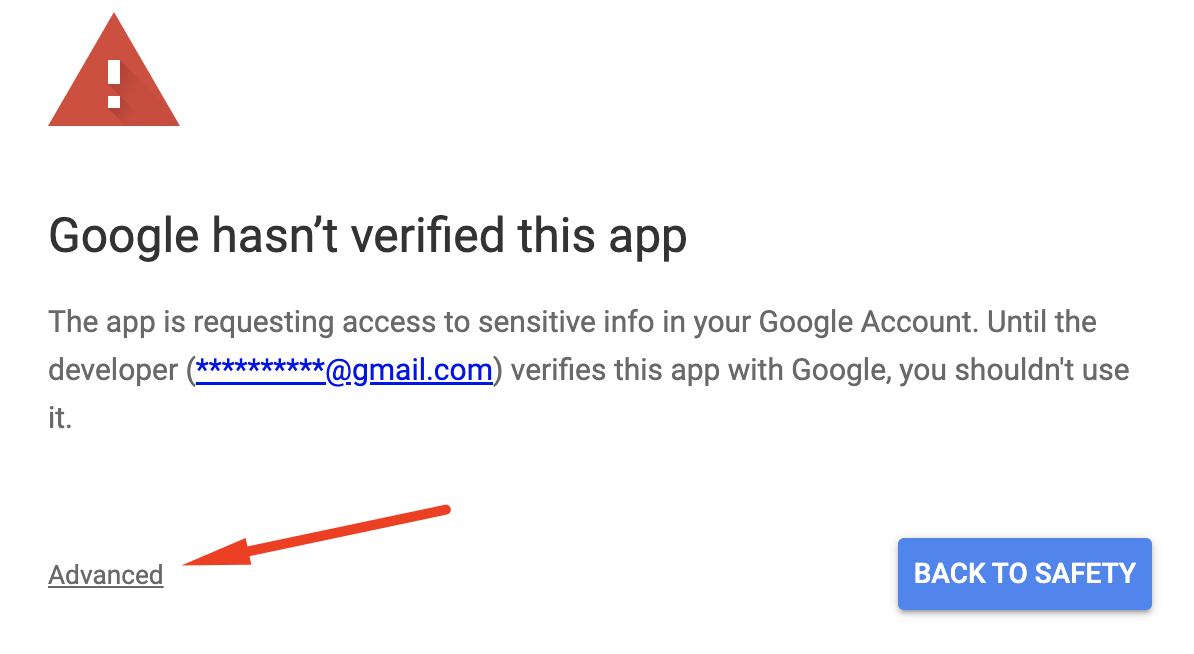
As our script isn't verified by Google, you'll see a warning on the next screen. Click on Advanced to proceed.
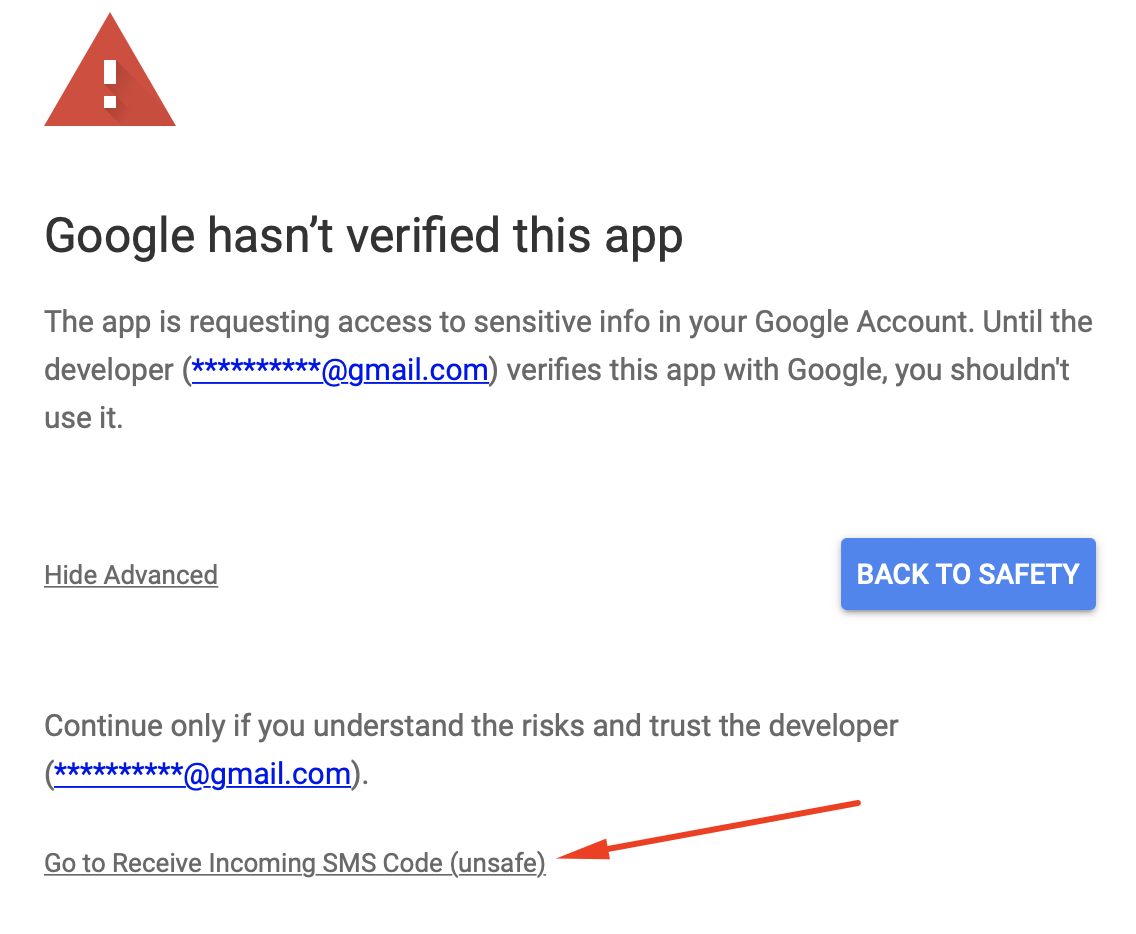
The Advanced option will appear as shown below. Click on Go to Receive Incoming WhatsApp Code (unsafe) to proceed.
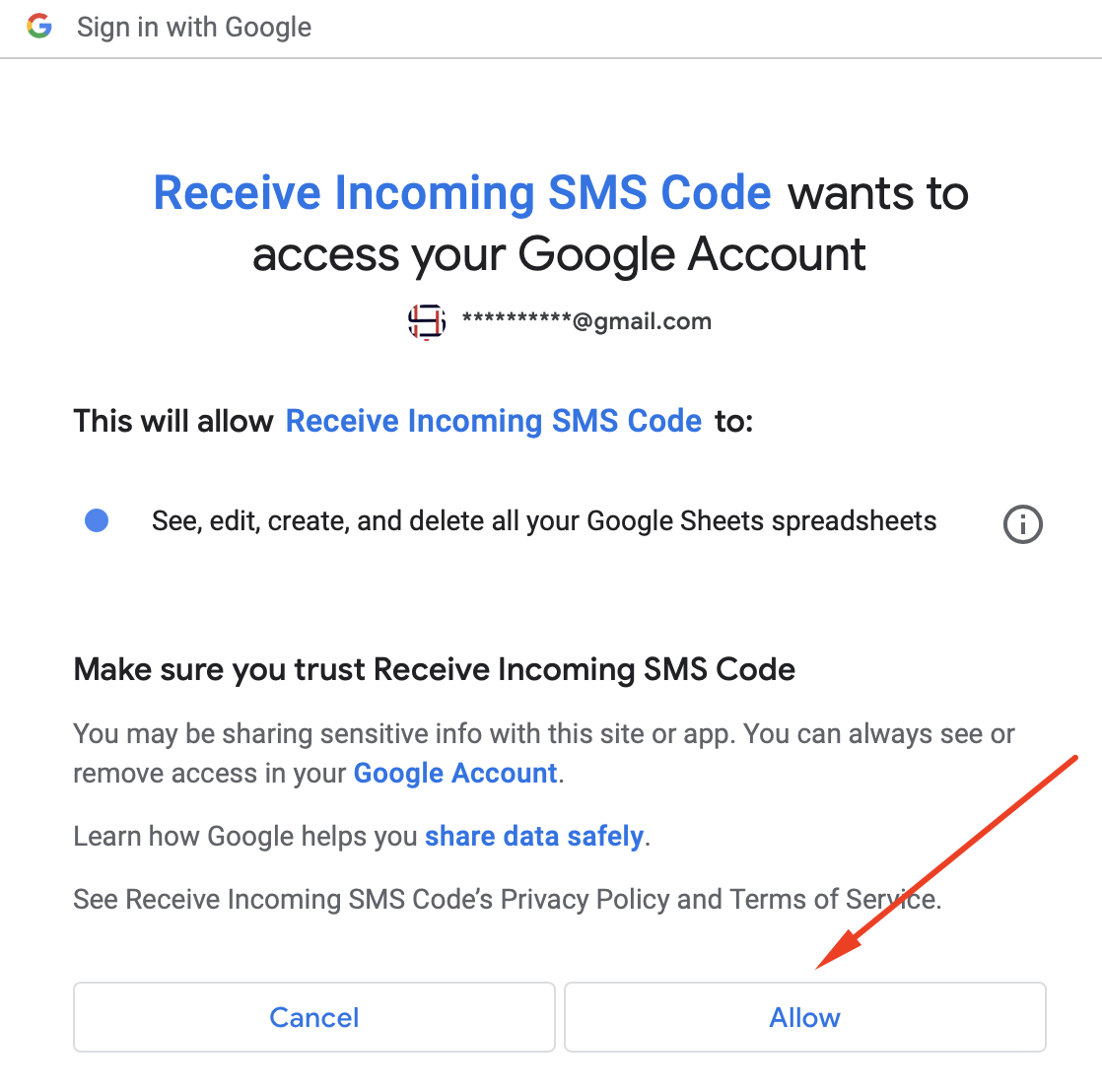
In the next window, you'll see a list of permissions required by the script. Scroll down and click Allow. Don't worry — you are granting permissions to your own account, and no one else can access your app code or sheet data.
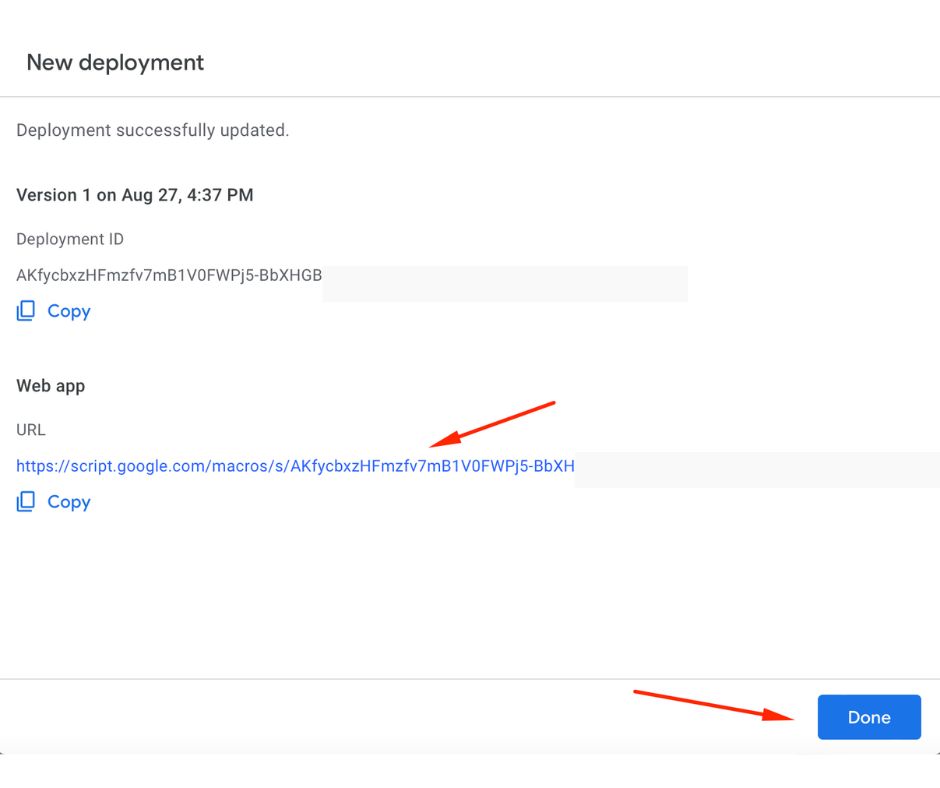
Once the deployment is successfully updated, Google will provide a Deployment ID and a Web App URL. Copy the Web App URL.
Next, log in to your SMSGatewayCenter account and navigate to the Webhook section from the left sidebar.
For a detailed step-by-step guide, refer to our knowledge base article on how to set up a webhook to receive incoming WhatsApp messages and delivery reports (DLRs).
You are done, the moment you start getting incoming WhatsApp, the data will be forwarded to your Google's web app URL.
You can also contact us if you are facing issues, our team will help you to install the code and insert the data smoothly.
This concludes with your integration. Learn more from our WhatsApp API documentation.
👍 Setup Complete!
If you are having difficulty, write to us at contact @ smsgatewaycenter.com for assistance.
Are you ready to use this script to Receive Incoming WhatsApp into Google Sheets?
Frequently Asked Questions about Incoming WhatsApp to Google Spreadsheet Integration
This integration captures incoming WhatsApp messages and logs them directly into a Google Spreadsheet in real-time. It's ideal for tracking leads, customer queries, or support conversations automatically.
No coding knowledge is required. Our team provides step-by-step instructions to connect your WhatsApp Business API to your Google Spreadsheet using webhooks or Apps Script.
Yes, using Google Sheets formulas or Google Apps Script, you can filter, tag, or even forward messages based on keywords, sender names, or message content.
You'll need a WhatsApp Business API setup through SMSGatewayCenter, an active internet connection, and access to Google Sheets with editing rights.
Yes, the system is scalable and suitable for small businesses to large enterprises receiving hundreds or thousands of WhatsApp messages daily.