Salesforce No-Code Messaging Integration: Send & Receive SMS, WhatsApp, Voice and RCS
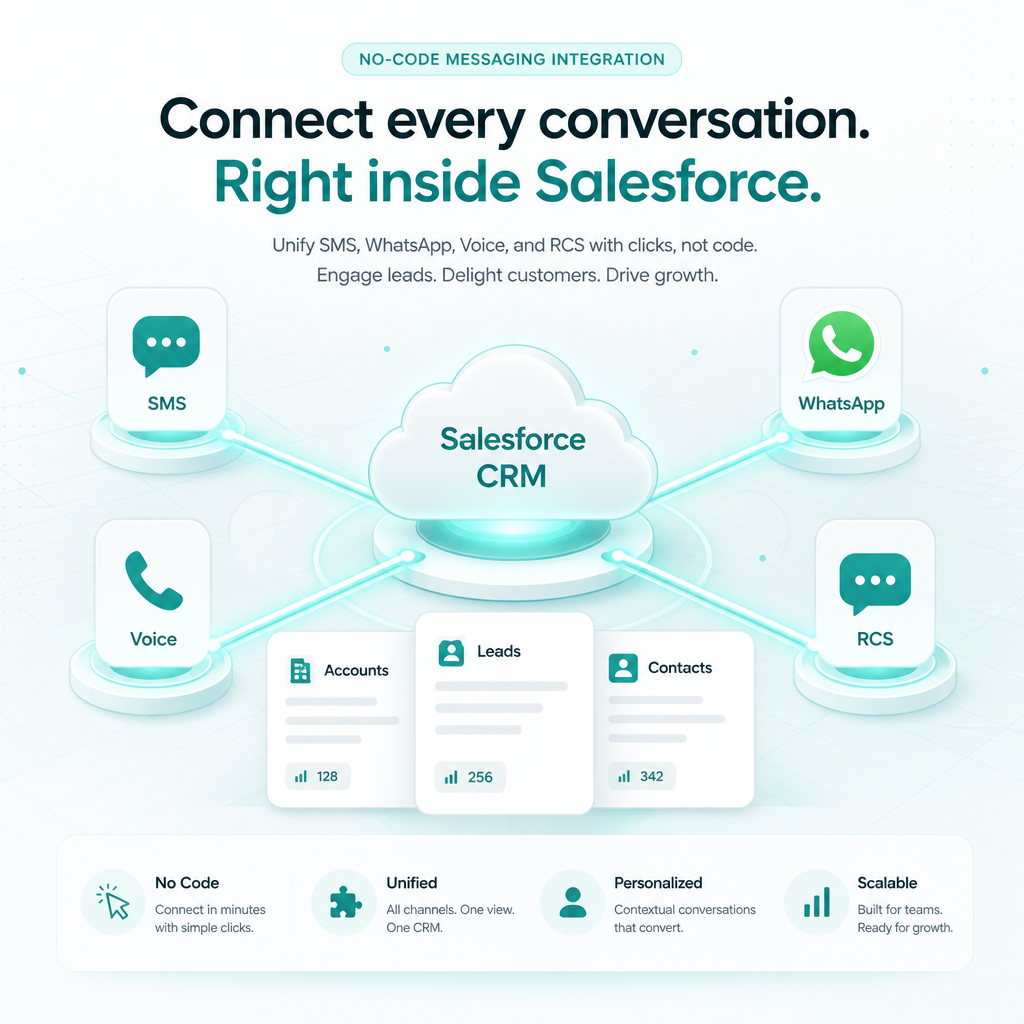
Connect your Salesforce account once, load objects such as Accounts, Leads, and Contacts, and automate messaging without AppExchange packages, Apex, or Zapier. Turn on Send SMS, Send WhatsApp, Send Voice, or Send RCS for any object, and every new record can trigger a message. Turn on inbound logging and replies land back as Salesforce Chatter posts.
What is Salesforce No-Code Messaging?
Salesforce No-Code Messaging Integration connects your Salesforce org to your SMSGatewayCenter account so CRM records and messaging stay in sync automatically. Create a Lead, Contact, or Account, and a message can go out. A customer replies, and it posts back as a Chatter feed item on the matching record.
What Can You Automate, Per Object?
- ✅ Send SMS, WhatsApp, Voice Call, or RCS automatically when a new Salesforce record is created
- 🔗 Personalized messages using Salesforce field placeholders such as
{FirstName}and{Company} - 📥 Log incoming SMS, WhatsApp, or RCS replies as Chatter posts on the matched record
- 📊 Delivery status (SENT / DELIVERED / FAILED) posted back to Chatter after each send
- ⚙️ One-time Salesforce OAuth connect, then load objects and map the mobile field
- 🔒 Fully secure, DLT, and TRAI-compliant for Indian businesses
Ideal for sales teams, support desks, and enterprises that already live in Salesforce and want messaging without writing code.
Automate SMS, WhatsApp, Voice, and RCS both ways from Salesforce CRM using SMSGatewayCenter. Connect once, load objects, and let messaging run.
All Channels You Can Enable Per Object
Mix outbound sends and inbound Chatter logging independently on Accounts, Leads, Contacts, and other phone-enabled objects.
SMS
Send free-text or DLT templates on new records. Choose Sender ID, message type (Text/Unicode), and insert Salesforce fields into the body.
Send approved WhatsApp templates. Map header, body, media, and button variables to Salesforce object fields or fixed values.
Voice
Place an outbound call and play an approved audio clip from your voice library when a new record is created.
RCS
Send approved RCS templates from a verified bot, with per-variable mapping to Salesforce fields.
Log Incoming SMS
Inbound SMS replies are matched by mobile number and posted as a Chatter feed item on the Salesforce record.
Log Incoming WhatsApp
WhatsApp replies, captions, and button responses are written back as Chatter posts on the matched Account, Lead, or Contact.
Log Incoming RCS
Inbound RCS messages and button taps are logged as Chatter posts so sales teams see the full conversation in CRM.
How It Works
Four Steps, No Code
1. Connect Salesforce
One-time OAuth from Connected Services in your SMSGatewayCenter panel. Your Salesforce identity shows as Connected once linked.
2. Load an Object
Click Connect an Object, pick Accounts, Leads, Contacts, or another phone-enabled object, and select the mobile field.
3. Enable Channels
Flip on outbound Send SMS / WhatsApp / Voice / RCS and inbound Chatter logging. Configure templates and sender IDs per channel.
4. It Runs Automatically
New records and replies are picked up on a short polling cycle, about once a minute. Check Recent Activity to confirm delivery.
Watch: Salesforce CRM SMS Integration Tutorial
A no-code walkthrough of connecting Salesforce CRM, enabling SMS, WhatsApp, RCS, and Voice, and logging replies back as Chatter posts.
Watch on YouTube: Salesforce CRM Integration: Send Automatic SMS, WhatsApp, RCS and Voice
Step-by-Step: Connect Salesforce and Set Up Messaging
Follow these steps in order. Typical setup takes only a few minutes once Salesforce OAuth is available on your account.
Step 1: Open Salesforce CRM Integration
Login to your SMSGatewayCenter account. From the sidebar, open Integrations (or Connected Services) and choose Salesforce CRM.
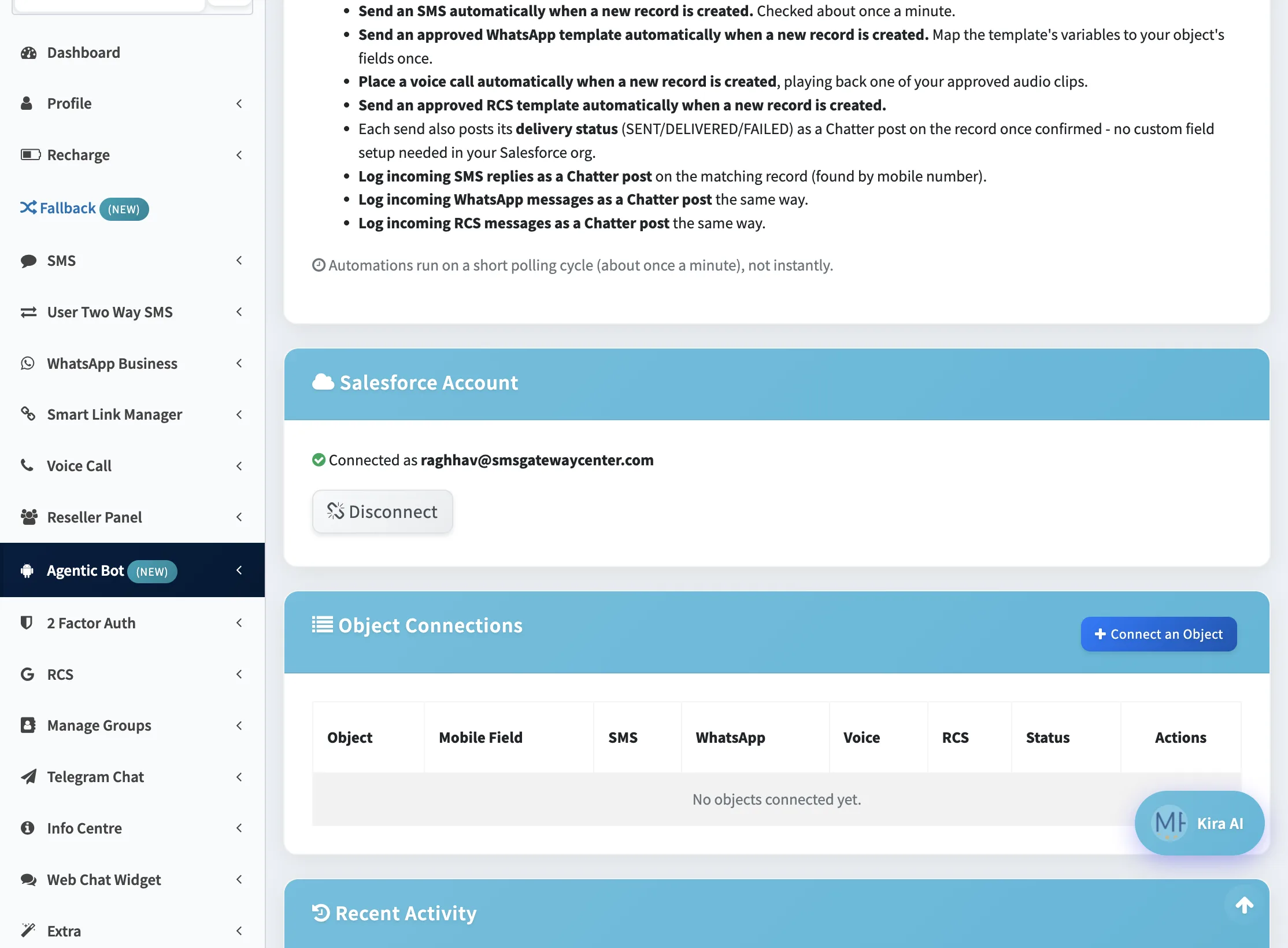
You will see an overview of outbound sending, Chatter delivery write-back, and inbound reply logging, plus the Salesforce Account and Object Connections panels.
Step 2: Connect Your Salesforce Account
Under Salesforce Account, click Connect if you are not linked yet. Complete the Salesforce OAuth consent. When done, the panel shows Connected as your Salesforce username, with a Disconnect option available after you remove object connections.
This is a one-time step per account. Your reseller or platform admin must have Salesforce Connected App credentials configured before OAuth works.
Step 3: Click Connect an Object
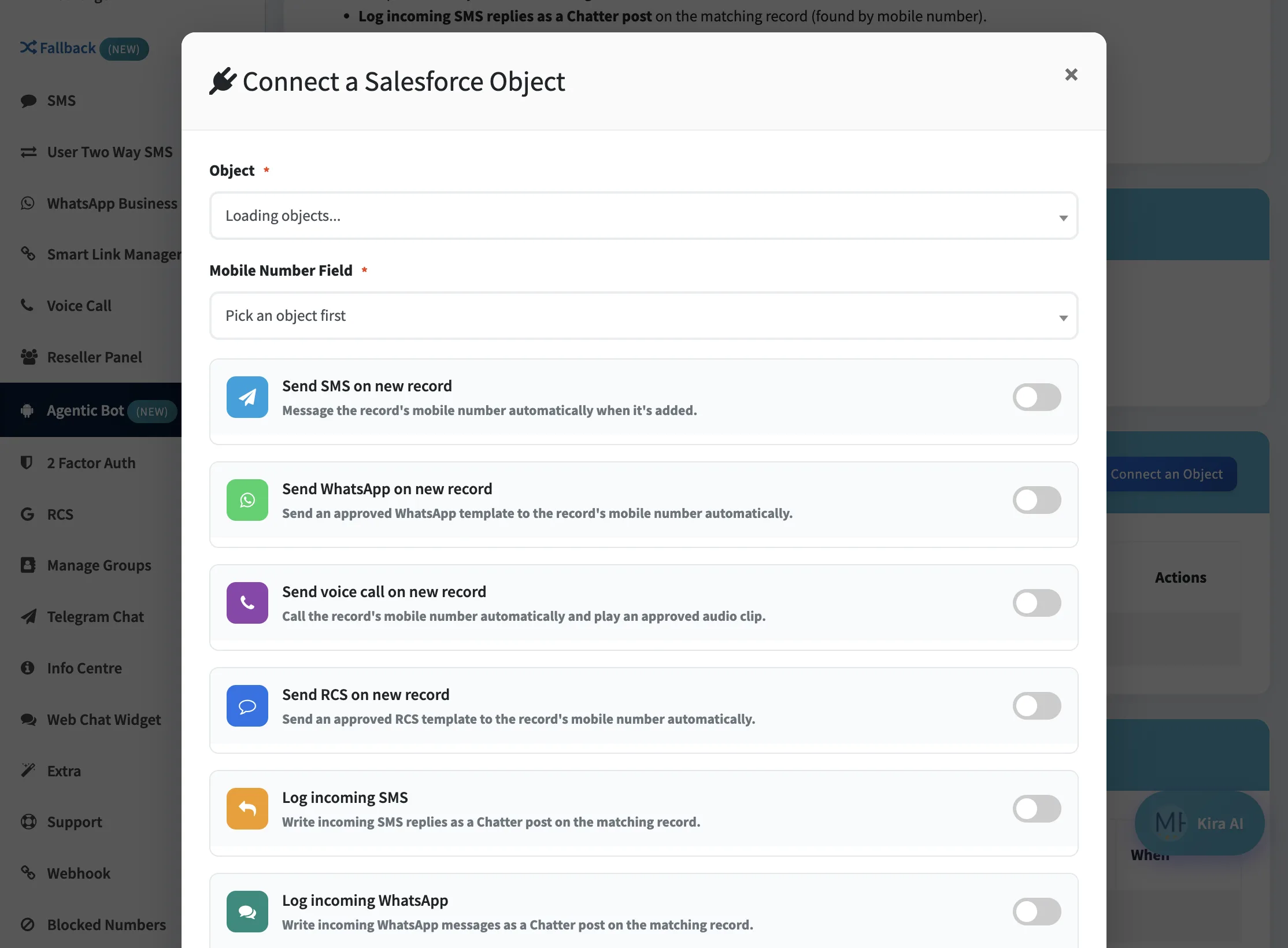
Under Object Connections, click + Connect an Object. A dialog opens where you load Salesforce objects that support create and have at least one phone-type field.
Common choices include Leads, Contacts, and Accounts. Other eligible standard or custom objects appear in the same picker when they have a phone field.
Step 4: Pick the Object and Mobile Field
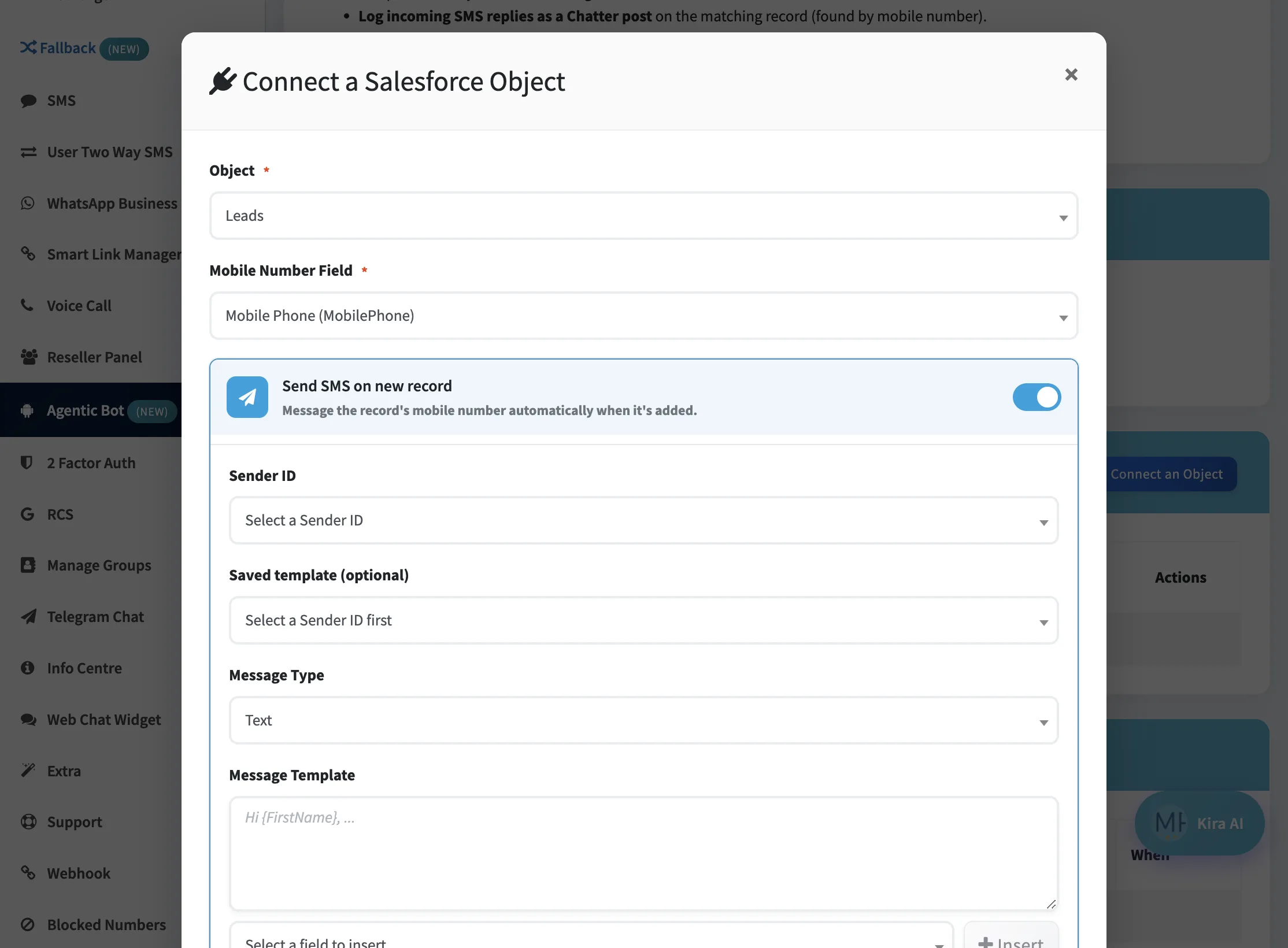
Select the Object (for example Leads), then choose the Mobile Number Field such as Mobile Phone. This field is used for every outbound send and for matching inbound replies.
Turn on Send SMS on new record (and any other outbound channel you need). Choose a Sender ID, optional DLT template, message type, and write your text with Salesforce field placeholders. Use Select a field to insert to add tokens such as FirstName.
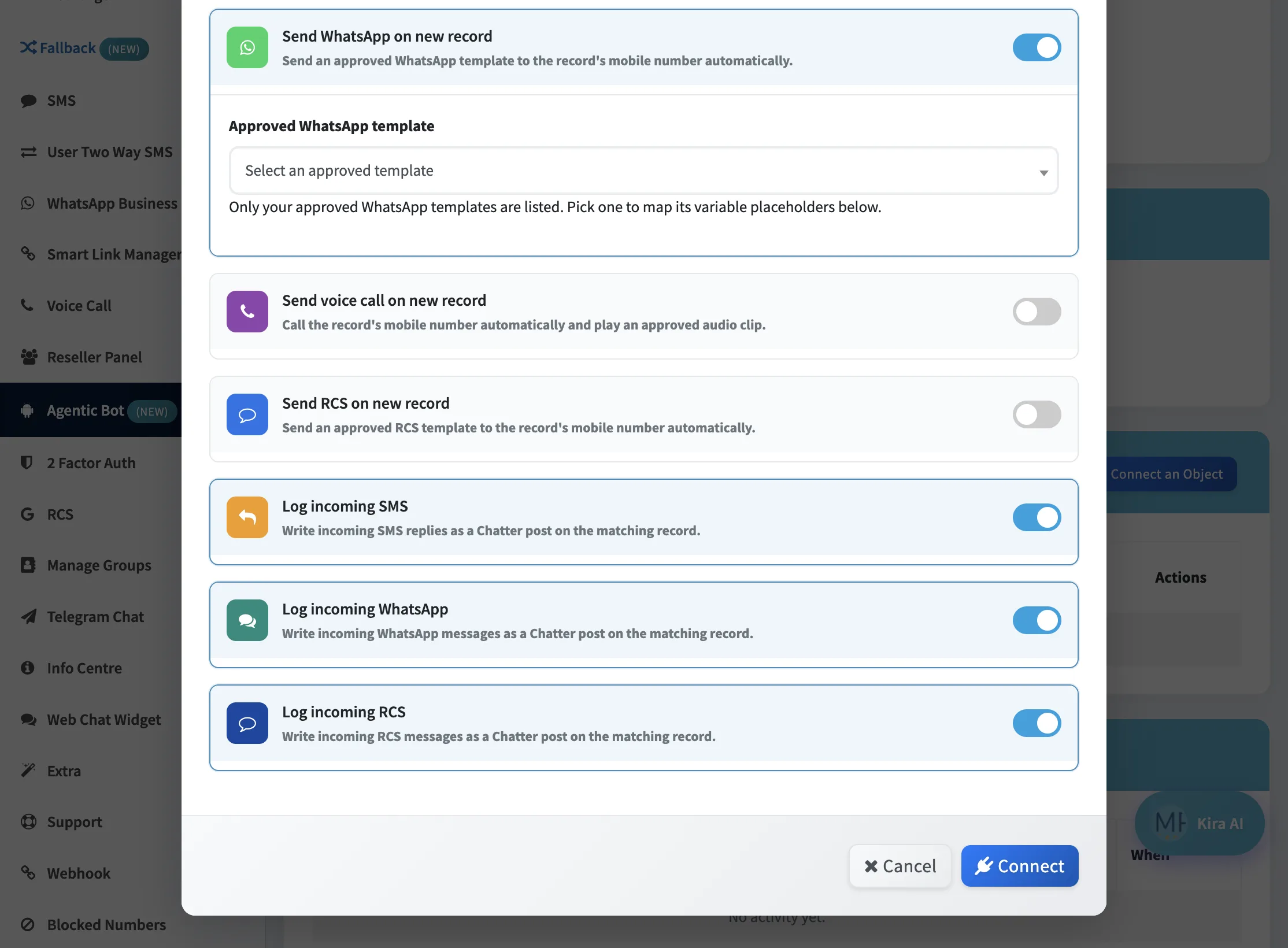
Step 5: Enable WhatsApp, Voice, RCS, and Inbound Chatter Logging
In the same dialog, enable any additional outbound channels:
- Send WhatsApp on new record: pick an approved template and map variables.
- Send voice call on new record: pick an approved audio clip.
- Send RCS on new record: pick a verified bot and RCS template.
For two-way context, enable:
- Log incoming SMS / WhatsApp / RCS: writes replies as Chatter posts on the matching record.
Click Connect to save. Create a test record in Salesforce and confirm the send under Recent Activity.
Load Objects to Send and Receive Messages
Start with the objects your sales and support teams use most. Each connection has its own channel mix.
Accounts
Welcome or onboarding alerts when a new Account is created. Replies and delivery statuses post to Account Chatter.
Leads
First-response SMS or WhatsApp the moment a Lead lands in Salesforce. Keep reply threads visible on the Lead Chatter feed.
Contacts
Service and relationship alerts when Contacts are created. Inbound SMS, WhatsApp, and RCS log back as Contact Chatter posts.
Frequently Asked Questions
No. You connect Salesforce with OAuth from your SMSGatewayCenter panel. No AppExchange install and no custom Apex are required for the create-to-message flow.
Inbound SMS, WhatsApp, and RCS replies are matched by mobile number and posted as Chatter feed items on the matching record, along with channel text and timestamp.
Any Salesforce object that allows create and has at least one phone-type field. Accounts, Leads, and Contacts are the most common. Eligible custom objects also appear in the picker.
Automations run on a short polling cycle, about once a minute. Most new records trigger within one to two minutes. Use Recent Activity to confirm processing and delivery status.
Yes. Outbound SMS uses your registered Sender IDs and DLT templates on SMSGatewayCenter routes. WhatsApp, Voice, and RCS still require their usual approved assets.
Ready to connect Salesforce to your messaging stack?
Talk to us to enable Salesforce CRM Integration on your account, then follow the steps above to load objects and start sending.
Talk to a Specialist