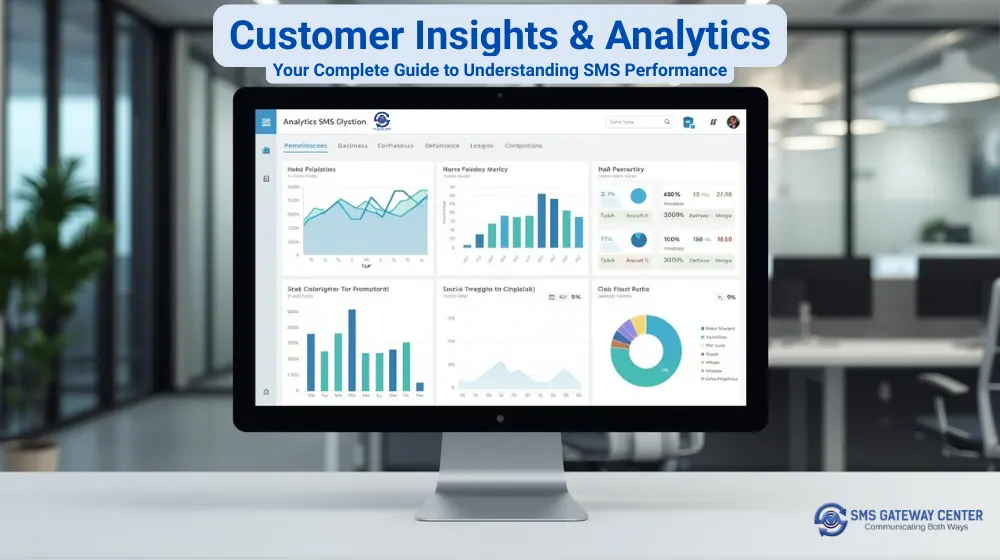
SMS Gateway Center‘s Customer Insights & Analytics helps you understand your messaging performance, spot trends, and make data-driven decisions. Here’s how to use it.
What is Customer Insights & Analytics?
Customer Insights & Analytics is a dashboard that analyzes your messaging data and provides actionable insights. It shows:
- How many messages you sent
- How many were delivered successfully
- Which templates perform best
- Which campaigns drive results
- Where failures occur and why
- How much you’re spending
Why Customer Insights Matters
1. Make Informed Decisions
Use data instead of guesswork to:
- Identify top-performing templates
- Understand what drives success
- Spot problems early
- Optimize campaigns
2. Save Money
Reduce costs by:
- Identifying expensive templates
- Finding cost-effective channels
- Eliminating wasteful campaigns
- Optimizing budget allocation
3. Improve Performance
Boost results by:
- Improving low-performing templates
- Optimizing campaign strategies
- Reducing error rates
- Increasing delivery success
4. Grow Your Business
Drive growth by:
- Understanding what works
- Scaling successful campaigns
- Improving customer engagement
- Maximizing ROI
Getting Started: Your First Steps
Step 1: Access Customer Insights
- Log in to your SMS Gateway Center account
- Navigate to Customer Insights & Analytics from the main menu
- You’ll see the date selection form at the top
Step 2: Select Your Date Range
Choose a range that fits your needs:
- Last 7 days: Recent performance
- Last 30 days: Monthly trends
- Custom range: Specific periods
Tip: Start with the last 7–30 days, then compare with previous periods.
Step 3: View Your Dashboard
After selecting dates and clicking “View Analytics,” you’ll see:
- Summary cards with key metrics
- Performance charts
- Detailed tables
- AI-generated insights
Understanding Your Summary Cards
Total Messages
- What it shows: Total messages sent in the selected period
- Why it matters: Baseline for understanding activity
- How to use it: Compare periods to track growth
Delivered Messages
- What it shows: Count and percentage of successfully delivered messages
- Why it matters: Primary success metric
- How to use it: Aim for 90%+ delivery rates
Failed Messages
- What it shows: Count and percentage of failed messages
- Why it matters: Indicates problems
- How to use it: Investigate and fix common errors
Total Cost
- What it shows: Total spending on messaging
- Why it matters: Budget tracking
- How to use it: Monitor spending and optimize costs
Template Performance Analysis: Finding Your Winners
The Template Performance table shows how each template performs.
Key Metrics Explained
- Template ID: Unique identifier for each template
- Identifier: Template name or identifier
- Message Type: Type of message (promotional, transactional, OTP)
- Total Messages: Volume sent for this template
- Success: Count of successfully delivered messages
- Failed: Count of failed messages
- Success Rate: Percentage of successful deliveries
- Total Cost: Spending for this template
How to Use Template Performance Data
Identify top performers
- Sort by Success Rate (highest first)
- Look for 90%+ success rates
- Note low-cost, high-performing templates
Find templates needing improvement
- Sort by Success Rate (lowest first)
- Identify templates below 85%
- Check failure reasons
Compare templates
- Compare success rates
- Compare costs
- Identify best value templates
Optimize your strategy
- Use top performers more
- Improve or replace weak templates
- Test changes and measure impact
Real Example: Template Optimization
Scenario: You have 10 templates with varying performance.
Step 1: Review the Template Performance table
- Template A: 95% success rate, ₹0.50 per message
- Template B: 87% success rate, ₹0.45 per message
- Template C: 72% success rate, ₹0.55 per message
Step 2: Analysis
- Template A: High performer, use more
- Template B: Good performer, acceptable
- Template C: Needs improvement
Step 3: Action
- Increase usage of Template A
- Investigate Template C issues
- Fix or replace Template C
Result: Improved delivery rates and lower costs.
Campaign Performance: Understanding What Works
The Campaign Performance table shows how your campaigns perform.
Key Metrics Explained
- Identifier: Campaign identifier or name
- Campaign Type: Type of campaign
- Channel: Channel used (SMPP, API, UI)
- Campaigns: Number of campaigns
- Total Messages: Volume sent
- Success: Count of successful deliveries
- Success Rate: Percentage of successful deliveries
- Total Cost: Spending for the campaign
How to Use Campaign Performance Data
Compare campaigns
- Sort by Success Rate
- Compare performance side-by-side
- Identify best performers
Identify successful patterns
- Analyze top campaigns
- Note common factors (timing, messaging, targeting)
- Replicate success patterns
Optimize underperformers
- Review low-performing campaigns
- Identify issues
- Make improvements or pause
Allocate budget
- Invest in high performers
- Reduce spending on low performers
- Optimize budget allocation
Real Example: Campaign Optimization
Scenario: You run 5 campaigns with varying results.
Step 1: Review Campaign Performance
- Campaign 1: 92% success rate, ₹500 cost
- Campaign 2: 88% success rate, ₹450 cost
- Campaign 3: 75% success rate, ₹600 cost
Step 2: Analysis
- Campaigns 1 and 2: High performers
- Campaign 3: Underperforming
Step 3: Action
- Increase budget for Campaigns 1 and 2
- Investigate Campaign 3 issues
- Optimize or pause Campaign 3
Result: Better ROI and more efficient spending.
Error Code Breakdown: Understanding Failures
The Error Code Breakdown table shows why messages fail.
Key Metrics Explained
- Error Code: TRAI error code
- Cause/Status: Description of the error
- Message Count: Number of messages with this error
- Percentage: Percentage of total messages
- Total Cost: Cost of failed messages
Common Error Codes Explained
- Delivered: Successfully delivered (not an error)
- Template Mismatch: Template doesn’t match approved version
- Invalid Number: Phone number is invalid or incorrect
- Barred: Number is barred or blocked
- NCPR Fail: National Customer Preference Registry check failed
- Unknown Error: Unspecified error
How to Use Error Analysis
Identify common errors
- Sort by Message Count
- Focus on most frequent errors
- Prioritize fixes
Understand failure patterns
- Check if errors cluster by time, template, or channel
- Identify root causes
- Take targeted action
Take corrective action
- Fix template issues
- Clean contact lists
- Adjust messaging strategies
- Update templates
Monitor improvements
- Track error rates after changes
- Confirm fixes are working
- Prevent recurring issues
Real Example: Error Resolution
Scenario: High failure rates affecting delivery.
Step 1: Review Error Code Breakdown
- Template Mismatch: 500 messages (50% of failures)
- Invalid Number: 300 messages (30% of failures)
- Other errors: 200 messages (20% of failures)
Step 2: Analysis
- Template Mismatch: Template issues
- Invalid Number: Contact list problems
Step 3: Action
- Fix template mismatches
- Clean invalid numbers from contact list
- Update templates as needed
Result: Lower failure rates and improved delivery.
Channel Statistics: Comparing Your Channels
The Channel Statistics table compares SMPP, API, and UI channels.
Key Metrics Explained
- Channel: Channel type (SMPP, API, UI)
- Messages: Total messages sent via this channel
- Success: Count of successful deliveries
- Success Rate: Percentage of successful deliveries
- Cost: Total cost for this channel
How to Use Channel Statistics
Compare channel performance
- Compare success rates
- Compare costs
- Identify best-performing channel
Optimize channel usage
- Use best-performing channel more
- Reduce reliance on low performers
- Balance performance and cost
Understand channel differences
- Learn channel-specific characteristics
- Optimize for each channel
- Improve overall performance
Real Example: Channel Optimization
Scenario: Using multiple channels with varying performance.
Step 1: Review Channel Statistics
- SMPP: 94% success rate, ₹0.50 per message
- API: 91% success rate, ₹0.45 per message
- UI: 88% success rate, ₹0.55 per message
Step 2: Analysis
- SMPP: Highest success rate
- API: Good balance of performance and cost
- UI: Lower performance, higher cost
Step 3: Action
- Increase usage of SMPP and API
- Reduce UI usage
- Optimize channel allocation
Result: Better performance and lower costs.
Template Type Statistics: Understanding Message Types
The Template Type Statistics table shows performance by template type.
Key Metrics Explained
- Template Type: Type of template (promotional, transactional, OTP)
- Total Messages: Volume sent for this type
- Success: Count of successful deliveries
- Failed: Count of failed messages
- Success Rate: Percentage of successful deliveries
- Total Cost: Spending for this type
How to Use Template Type Statistics
Compare template types
- Compare success rates
- Compare costs
- Identify best-performing types
Optimize type usage
- Use high-performing types more
- Improve low-performing types
- Balance type allocation
Understand type differences
- Learn type-specific characteristics
- Optimize for each type
- Improve overall performance
Daily Statistics Charts: Visualizing Trends
The Daily Statistics chart shows daily performance trends.
Understanding the Chart
- X-Axis: Dates in your selected range
- Y-Axis: Number of messages
- Green Line: Delivered messages
- Red Line: Failed messages
How to Use Daily Statistics
Identify trends
- Spot improving or declining trends
- Identify patterns
- Understand performance changes
Compare periods
- Compare different date ranges
- Understand seasonal variations
- Track long-term trends
Spot issues
- Identify sudden drops
- Detect anomalies
- Take corrective action
Error Code Distribution Chart: Visualizing Failures
The Error Code Distribution chart shows failure breakdown.
Understanding the Chart
- Chart Type: Doughnut chart
- Segments: Different error codes
- Size: Proportion of total failures
- Colors: Different error types
How to Use Error Distribution
Identify major issues
- Largest segments are biggest problems
- Focus on high-impact errors
- Prioritize fixes
Understand failure patterns
- See error distribution
- Identify common problems
- Take targeted action
Monitor improvements
- Track changes over time
- Confirm fixes are working
- Prevent recurring issues
Best Practices for Using Customer Insights
1. Regular Monitoring
- Check insights weekly
- Monitor trends
- Spot issues early
2. Date Range Selection
- Use 7–30 day ranges for recent performance
- Compare periods to track trends
- Use longer ranges for long-term analysis
3. Template Optimization
- Focus on top performers
- Improve or replace weak templates
- Test changes and measure impact
4. Campaign Refinement
- Analyze campaign data regularly
- Optimize based on insights
- Continuously improve
5. Error Resolution
- Address common errors first
- Monitor improvements
- Prevent recurring issues
6. Channel Optimization
- Compare channel performance
- Optimize channel usage
- Balance performance and cost
7. Budget Optimization
- Analyze cost efficiency
- Optimize budget allocation
- Maximize ROI
Common Questions Answered
Q: How often should I check Customer Insights?
A: Weekly for regular monitoring, daily during active campaigns.
Q: What date range should I use?
A: Start with 7–30 days, then compare with previous periods.
Q: How do I improve template performance?
A: Review top performers, identify differences, and optimize weak templates.
Q: What if I see high error rates?
A: Review the Error Code Breakdown, identify patterns, and address root causes.
Q: Can I export the data?
A: Yes, export reports for further analysis.
Q: How do I optimize my budget?
A: Analyze cost efficiency, compare campaigns, and allocate budget to top performers.
Q: What’s a good success rate?
A: Aim for 90%+, though acceptable rates vary by use case.
Q: How do I compare channels?
A: Use Channel Statistics to compare success rates and costs.
Tips for Maximum Results
- Use insights to guide decisions
- Monitor trends regularly
- Optimize based on data
- Test changes and measure impact
- Focus on high-impact improvements
- Compare periods to track progress
- Address errors promptly
- Optimize budget allocation
- Learn from top performers
- Continuously improve
Conclusion
Customer Insights & Analytics helps you:
- Understand messaging performance
- Make data-driven decisions
- Optimize campaigns and templates
- Reduce costs and improve ROI
- Grow your business
Start using Customer Insights today and turn your messaging data into actionable intelligence.
Ready to unlock the power of your messaging data? Log in to your SMS Gateway Center account and explore Customer Insights & Analytics today.
For more information about SMS Gateway Center features, check out our SMS API documentation and bulk SMS solutions.