With the latest SMSGatewayCenter mobile app update, WhatsApp workflows are no longer limited to the web panel. You can now send WhatsApp messages, manage templates, view reports, check summary data, and review analytics directly from your iPhone or Android phone.
This release is built for real business use. It connects to the same SMSGatewayCenter account and WhatsApp Business API setup you already use on the web, so your WABA number, templates, and reporting stay aligned across devices.
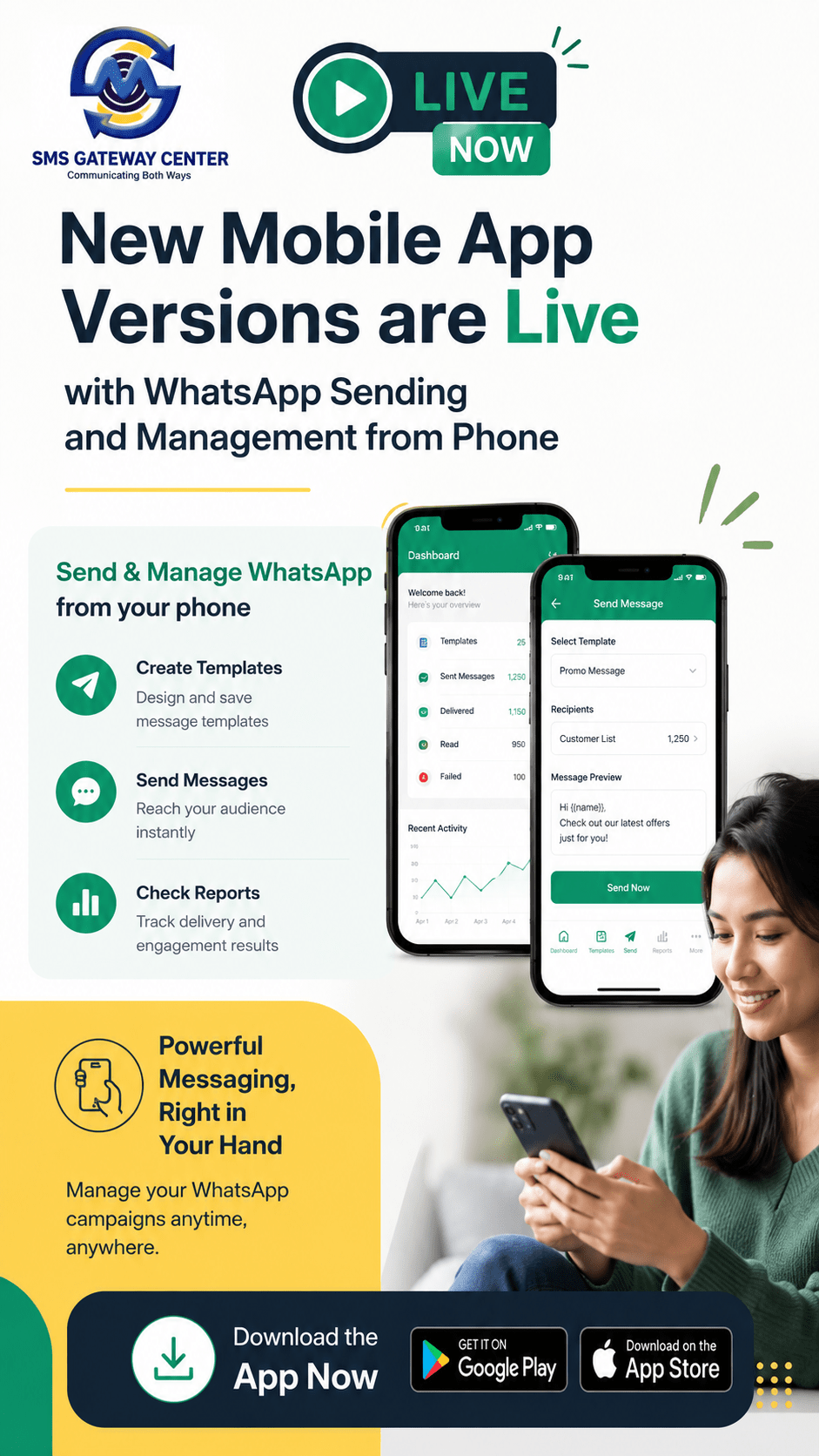
Download the app:
- iOS 1.3: https://apps.apple.com/in/app/sms-gateway-center/id6755840900
- Android 1.2: https://play.google.com/store/apps/details?id=com.smsgatewaycenter
- Learn more: https://www.smsgatewaycenter.com
Where to Find WhatsApp in the App
After login, open the main Services Hub menu. You will see a dedicated WhatsApp section with these options:
- Send WhatsApp
- Templates
- View Reports
- Summary
- Analytics
- WhatsApp Settings
Each screen is designed for mobile use, with clear cards, filters, and action buttons so you can complete tasks quickly on a small screen.
Step 1: Configure WhatsApp Settings (Start Here)
Before sending messages or loading templates, configure your WhatsApp Business API number (WABA) in:
WhatsApp → WhatsApp Settings
What you can do here
- Save your WABA number with country code (digits only)
- Store the number locally on your device for faster access
- Use the same number across Send, Templates, Reports, Summary, and Analytics
Why this matters
The app uses your configured WABA number to:
- Load approved templates
- Send WhatsApp messages
- Filter reports and analytics correctly
Multi-account support
If you switch between multiple SMSGatewayCenter accounts on the same phone, the app stores the WABA number separately for each account. When you change accounts, the correct business number is loaded automatically.
Send WhatsApp: Campaign Sending from Mobile
Menu path: WhatsApp → Send WhatsApp
This is the main action screen for outbound WhatsApp communication.
1. WhatsApp Business Number card
- Shows your configured WABA number
- Lets you load templates for the active business number
- Displays helpful guidance if WABA is not configured yet
2. Recipients
Choose how you want to target recipients:
| Method | What it does |
|---|---|
| Quick | Enter mobile numbers manually or add from phone contacts |
| Group | Select one or more contact groups from your account |
| File | Upload a CSV/text file with recipient numbers |
Important: Country code is required for each number (example: 919876543210).
3. Template selection
You can send in two ways:
A. Template message (recommended for business-initiated messages)
- Tap Load Templates
- Choose an approved template from the list
- Fill variable fields based on template structure
- Preview header, body, footer, buttons, and carousel details
B. Session message
- Enable Session message (no template)
- Send an open conversation message when session rules apply
- Template name is omitted automatically
4. Message content
Depending on the template, you may see:
- Variable fields (
{{1}},{{2}}, etc.) - Header and footer text
- Carousel card details
- Catalog button information
- Button payload fields (URL, phone, quick reply values)
The app builds the message based on the selected template structure, so you do not have to guess the format manually.
5. Header media (for media templates)
For templates that require media headers, you can attach media using:
- Media Library ID (from your SMSGatewayCenter media library)
- Public URL
- From Device (photo picker or file upload)
Supported media types include:
- Image
- Video
- Document
For documents, you can also set the document name.
6. Schedule message
You can send immediately or schedule for later:
- Turn on Schedule message
- Pick date and time
- Message is submitted for scheduled delivery
On Android, scheduling uses native date and time pickers for easier selection.
7. Send
Once recipients, template/session content, and media (if needed) are ready, tap Send WhatsApp to submit the message through the platform API.
Templates: Create, Sync, View, and Delete on Mobile
Menu path: WhatsApp → Templates
This screen helps you manage WhatsApp message templates without opening the web panel.
Main actions
- Sync Templates from vendor/Meta approved list
- Refresh List to reload local template data
- Create Template using the + button
- Search templates by name, category, language, or status
- View details for any template
- Delete templates when permitted
Template list view
Each template shows useful business details such as:
- Template name
- Category (Utility, Marketing, Authentication)
- Language
- Status
- Header type
- Button summary (None, QR, CTA, etc.)
Create template (mobile form)
The create screen supports major template types used in production:
Basic details
- WABA number (prefilled from settings, editable)
- Template name (lowercase, numbers, underscores only)
- Description
- Language picker
- Category picker (UTILITY, MARKETING, AUTHENTICATION)
Layout types
- Text
- Media
- Carousel
Message sections
- Header (with Meta character limits)
- Body (with character count and variable support)
- Footer (optional, no variables allowed in footer)
Buttons
- Quick Reply
- URL (static/dynamic)
- Phone Number
Authentication templates
- OTP-focused format
- Copy code button text
- Optional code expiration
- Security recommendation option
Carousel templates
- Multiple cards
- Per-card body and media
- Card-level button setup
Media upload
- Header sample media from device
- Carousel card media upload
- Supports image, video, and document flows aligned with web API format
Meta compliance helpers
- Character counters for header, body, footer
- Header variable limit enforcement (one variable only)
- Footer variable restriction
- Template name auto-formatting (spaces to underscores)
Sync templates
Use Sync Templates to pull approved templates from your configured WABA. This is especially useful after creating or approving templates on the web or in Meta Business Manager.
View Reports: Delivery and Read Status Tracking
Menu path: WhatsApp → View Reports
Use this screen to check message-level delivery outcomes.
Filters available
- From Date / To Date
- Mobile number (optional)
- WABA number context (from settings)
Report results
After search, you can review:
- Total records found
- Current page and total pages
- Horizontal report table for mobile viewing
- Load More for paginated results
Typical use cases
- Verify if a campaign was delivered
- Check read status for a specific number
- Investigate failed or pending messages
- Support customer delivery queries while on the move
This helps operations and support teams respond faster without waiting for desktop access.
Summary: High-Level WhatsApp Performance View
Menu path: WhatsApp → Summary
Summary gives a quick overview of WhatsApp message volume and status for a selected period.
Filters
- Date range picker
- Optional Filter by WABA number
- If WABA filter is off, summary aligns with web behavior (all numbers on account)
Message Status chart
A donut chart shows status distribution such as:
- Delivered
- Read
- Failed
- Other status buckets returned by API
The chart includes a center total label for quick reading.
Daily Summary
Below the chart, you get day-wise rows with:
- Requested
- Delivered
- Read
- Failed
This is useful for daily monitoring, campaign reviews, and account health checks.
Analytics: Trends and Delivery Insights
Menu path: WhatsApp → Analytics
Analytics goes deeper than Summary and is ideal for performance tracking over time.
Filters
- Date range
- Optional WABA filter (same logic as Summary)
Monthly Trend
A monthly bar chart shows volume trends across the selected period. This helps identify peak campaign months and seasonal patterns.
Daily Trend
Day-by-day rows include:
- Submitted
- Delivered
- Read
- Failed
Delivery Summary
Billing-model based delivery breakdown, including:
- Requested
- Delivered
- Read
- Country and billing model labels (when available)
Who should use Analytics?
- Marketing managers tracking campaign efficiency
- Agency teams reporting client performance
- Business owners reviewing ROI from WhatsApp outreach
- Operations teams monitoring delivery quality by period
How Mobile WhatsApp Features Map to Web Panel
If you already use SMSGatewayCenter on the web, here is how mobile maps:
| Web capability | Mobile menu |
|---|---|
| Send WhatsApp campaigns | Send WhatsApp |
| Manage/create/sync templates | Templates |
| Delivery report search | View Reports |
| WhatsApp summary dashboard | Summary |
| WhatsApp analytics reports | Analytics |
| WABA configuration per workflow | WhatsApp Settings |
The mobile app is not a separate product. It is an extension of your existing account and API setup.
Best Practices for Using WhatsApp on Mobile
1. Configure WABA first
Always set your WABA number in WhatsApp Settings before sending or syncing templates.
2. Sync templates regularly
After approving new templates in Meta or on web, run Sync Templates on mobile before campaign sending.
3. Use correct number format
Include country code for every recipient to avoid delivery failures.
4. Choose the right message mode
- Use template mode for business-initiated messages
- Use session mode only when conversation window rules apply
5. Validate media before send
For media templates, confirm media source (library ID, URL, or device upload) and file type before submitting.
6. Monitor with Summary + Analytics
- Use Summary for quick health checks
- Use Analytics for trend and billing-model analysis
Who Benefits Most from This Update?
This WhatsApp mobile release is especially useful for:
- Digital marketing agencies managing client campaigns on the go
- Reseller partners supporting multiple business accounts
- E-commerce and D2C brands sending order and promotion messages
- Support teams checking delivery and response status quickly
- Founders and operations managers who need visibility without laptop dependency
If your business already uses SMSGatewayCenter for SMS and WhatsApp on web, this update gives you a practical mobile control layer for daily execution.
Download and Get Started
The WhatsApp mobile experience is available now:
- iPhone/iPad (iOS 1.3): https://apps.apple.com/in/app/sms-gateway-center/id6755840900
- Android (1.2): https://play.google.com/store/apps/details?id=com.smsgatewaycenter
- Platform details: https://www.smsgatewaycenter.com
Log in with your existing SMSGatewayCenter account, open the WhatsApp menu, configure your WABA in WhatsApp Settings, and start sending and managing WhatsApp from your phone.
Conclusion
The new SMSGatewayCenter mobile app update brings full WhatsApp operations to your pocket: send, template management, reports, summary, and analytics. It is designed for speed, clarity, and real business workflows, whether you are in the office, traveling, or supporting customers in the field.
If you have not updated yet, install the latest version today and move your WhatsApp operations fully mobile.