With the latest SMSGatewayCenter mobile app update, voice calling is no longer limited to the web panel. You can now send voice calls, manage your voice library, search delivery reports, review summary data, and analyze call trends directly from your iPhone or Android phone.
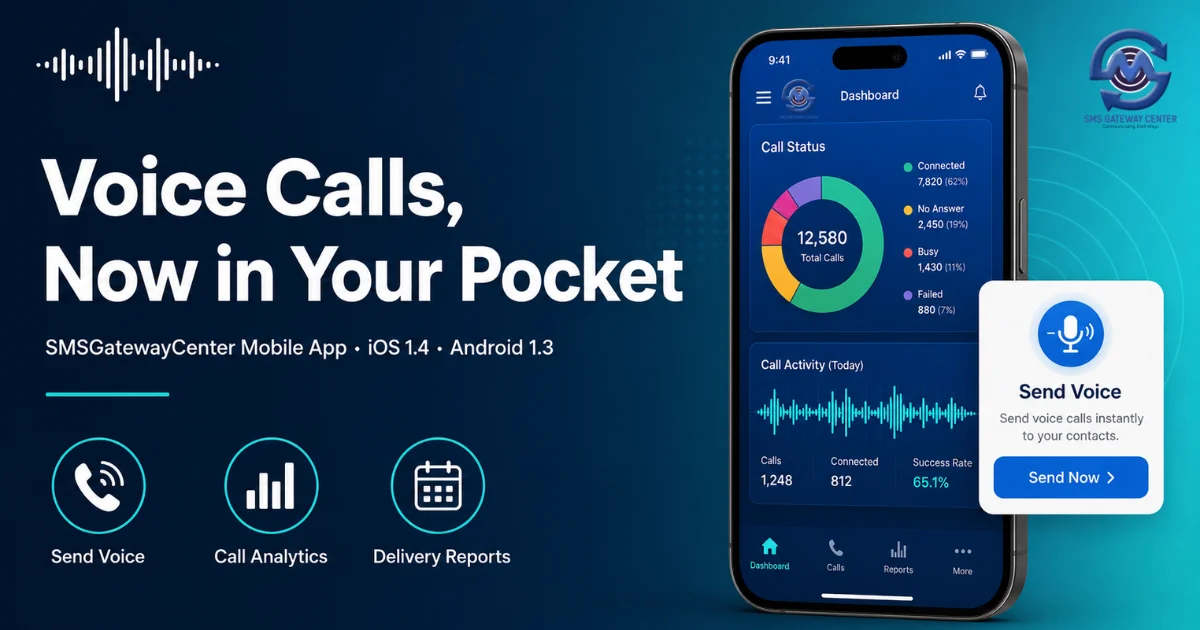
This release is built for real business use. It connects to the same SMSGatewayCenter account and voice calling setup you already use on the web, so your library clips, campaigns, and reporting stay aligned across devices.
Download the app:
- iOS 1.4: https://apps.apple.com/in/app/sms-gateway-center/id6755840900
- Android 1.3: https://play.google.com/store/apps/details?id=com.smsgatewaycenter
- Learn more: https://www.smsgatewaycenter.com
Where to Find Voice in the App
After login, tap the Voice tab in the bottom navigation bar. You will see a dedicated Voice section with these options:
- Send Voice
- Voice Library
- Delivery Report
- Summary
- Analytics
Each screen is designed for mobile use, with clear cards, filters, charts, and action buttons so you can complete voice workflows quickly on a small screen.
This update also introduces the new Services Hub layout with bottom navigation across Home, SMS, WhatsApp, Voice, and RCS, making it easier to switch between communication channels from one app.
Step 1: Prepare Your Voice Library (Start Here)
Before sending voice calls, upload and manage your audio clips in:
Voice → Voice Library
Voice sending on mobile uses library clips from your account. Text-to-speech and one-off audio upload at send time are not part of this mobile flow — you select a clip from your library, which keeps campaigns consistent with your web panel setup.
What you can do here
- Upload clips — Add MP3 or WAV audio files with a clip name (3–20 characters)
- Renew clips — Renew expired library clips by Library ID
- Manage library — View all account clips in a clear table-style layout with clip name, Library ID, status, and expiry details
- Refresh from account — Library data is loaded directly from your SMSGatewayCenter account API, not from manual device-only entries
Why this matters
Every voice call sent from mobile requires a valid Library ID. Managing clips in Voice Library first ensures:
- Send Voice can load and display your clips in a dropdown
- Clip names and IDs are visible before campaign submission
- Renewals are handled without returning to the web panel
Supported upload formats
- MP3
- WAV
Send Voice: Campaign Calling from Mobile
Menu path: Voice → Send Voice
This is the main action screen for outbound voice communication.
1. Audio Source card
- Loads voice library clips from your account automatically
- Select a clip from a dropdown showing clip name and Library ID
- If no clips exist, the app guides you to upload clips in Voice Library first
2. Recipients
Choose how you want to target recipients:
| Method | What it does |
|---|---|
| Quick | Enter mobile numbers manually or add from phone contacts |
| Group | Select one or more contact groups from your account |
Important: Country code is required for each number (example: 919876543210).
3. Call options
Additional campaign controls include:
- Campaign Identifier — Optional label for tracking
- Filter duplicate numbers — Remove duplicates before sending
- Redial Attempts — No retry, retry once, or retry twice
- Redial Interval — Choose interval in minutes when redial is enabled
4. Schedule voice call
You can send immediately or schedule for later:
- Turn on Schedule voice call
- Pick date and time
- Call is submitted for scheduled delivery
On Android, scheduling uses native date and time pickers for easier selection.
5. Send
Once a library clip, recipients, and options are ready, tap Send Voice to submit the call through the platform API.
A success confirmation alert appears after a successful submission on both iOS and Android.
Voice Library: Upload, Renew, and Manage Clips on Mobile
Menu path: Voice → Voice Library
This screen helps you manage voice audio assets without opening the web panel.
Main actions
- Upload Clip — Choose an audio file from your device and upload to your account library
- Renew Clip — Enter a Library ID to renew an expired clip on the server
- Manage Library — View all clips in a horizontal scrollable table
- Quick renew from table — Renew directly from the manage library view
Library table details
Each clip record shows useful business details such as:
- Clip name
- Library ID
- Status
- Expiry information
What changed in this version
- Manual library ID entry and device-only cached clips have been removed to reduce confusion
- Library data now comes from your live account API
- Table styling is optimized for both light and dark mode on Android
Delivery Report: Track Voice Call Outcomes
Menu path: Voice → Delivery Report
Use this screen to check call-level delivery outcomes.
Filters available
- From Date / To Date
- Mobile number (optional)
- Transaction ID (optional)
Search priority: Transaction ID search takes priority, then mobile number, then date range.
Report results
After search, you can review:
- Total records found
- Current page and total pages
- Horizontal report table for mobile viewing
- Load More for paginated results
Typical use cases
- Verify if a voice campaign was delivered
- Check call status for a specific number
- Investigate failed or pending calls
- Look up a specific transaction by UUID/transaction ID
- Support customer delivery queries while on the move
This helps operations and support teams respond faster without waiting for desktop access.
Summary: High-Level Voice Performance View
Menu path: Voice → Summary
Summary gives a quick overview of voice call volume and status for a selected period.
Filters
- Date range picker
- Load Summary action to fetch data
Call Status chart
A donut chart shows status distribution such as:
- Total
- Success
- Pending
- Failed
The chart includes a center total label for quick reading. On Android, donut center text is readable in dark mode and updates when a segment is selected.
Daily Summary
Below the chart, you get day-wise rows with:
- Total
- Success
- Pending
- Failed
- Amount (when available)
Load More advances through additional date ranges correctly, so you do not see repeated days when loading more data.
This is useful for daily monitoring, campaign reviews, and account health checks.
Analytics: Trends and Call Insights
Menu path: Voice → Analytics
Analytics goes deeper than Summary and is ideal for performance tracking over time.
Filters
- Date range
- Load Analytics action
Status Overview
A donut chart summarizes call status distribution for the selected period.
Monthly Trend
A monthly bar chart shows volume trends across the selected period. This helps identify peak campaign months and seasonal patterns.
Daily Trend
Day-by-day rows include:
- Total
- Success
- Failed
Load More loads additional daily trend data without repeating the same day.
Who should use Analytics?
- Marketing managers tracking campaign efficiency
- Agency teams reporting client performance
- Business owners reviewing outreach ROI
- Operations teams monitoring delivery quality by period
How Mobile Voice Features Map to Web Panel
If you already use SMSGatewayCenter on the web, here is how mobile maps:
| Web capability | Mobile menu |
|---|---|
| Send voice campaigns (Quick / Group) | Send Voice |
| Upload and manage voice library clips | Voice Library |
| Voice delivery report search | Delivery Report |
| Voice summary dashboard | Summary |
| Voice analytics and trends | Analytics |
The mobile app is not a separate product. It is an extension of your existing account and voice calling setup.
Best Practices for Using Voice on Mobile
1. Upload library clips first
Always prepare and verify clips in Voice Library before starting a Send Voice campaign.
2. Select the correct library clip
Confirm clip name and Library ID in the Send Voice dropdown before submitting.
3. Use correct number format
Include country code for every recipient to avoid delivery failures.
4. Use redial wisely
Enable redial only when your campaign strategy requires retry logic, and set a practical interval.
5. Schedule when needed
Use scheduling for off-hours or planned campaign windows instead of sending manually at odd times.
6. Monitor with Summary + Analytics
- Use Summary for quick health checks
- Use Analytics for trend and period-based analysis
7. Investigate issues in Delivery Report
Use transaction ID or mobile filters to troubleshoot specific call outcomes quickly.
More in This Release (Beyond Voice)
This version also improves the overall mobile experience:
- Services Hub home screen with quick actions for Dashboard, Profile, Balance, Support, and more
- Bottom tab navigation across Home, SMS, WhatsApp, Voice, and RCS
- Branded splash screen on app launch
- Dark mode improvements across hub screens, tables, and charts
- Device Settings moved to the home hub for appearance and push notification preferences
- Check DND on the home screen to verify Indian mobile numbers (with TRAI guidance notice)
Voice is the headline feature, but the app shell around it is now faster and easier to use daily.
Who Benefits Most from This Update?
This voice mobile release is especially useful for:
- Banks, NBFCs, and fintech teams sending payment reminders and alerts
- E-commerce and logistics brands triggering order and delivery voice updates
- Digital marketing agencies managing client voice campaigns on the go
- Reseller partners supporting multiple business accounts
- Support and operations teams checking call delivery status quickly
- Founders and managers who need visibility without laptop dependency
If your business already uses SMSGatewayCenter for SMS, WhatsApp, and voice on web, this update gives you a practical mobile control layer for daily voice execution.
Download and Get Started
The voice mobile experience is available now:
- iPhone/iPad (iOS 1.4): https://apps.apple.com/in/app/sms-gateway-center/id6755840900
- Android (1.3): https://play.google.com/store/apps/details?id=com.smsgatewaycenter
- Platform details: https://www.smsgatewaycenter.com
Log in with your existing SMSGatewayCenter account, open the Voice tab, upload clips in Voice Library, and start sending and monitoring voice calls from your phone.
Conclusion
The new SMSGatewayCenter mobile app update brings full voice calling operations to your pocket: send, library management, delivery reports, summary, and analytics. It is designed for speed, clarity, and real business workflows, whether you are in the office, traveling, or supporting customers in the field.
If you have not updated yet, install the latest version today and move your voice call operations fully mobile.