
Appointment Booking SMS & WhatsApp Reminders
Reduce no shows with timely messages. SGC Connect confirms bookings, tells customers about cancellations and reminds them an hour before the appointment.
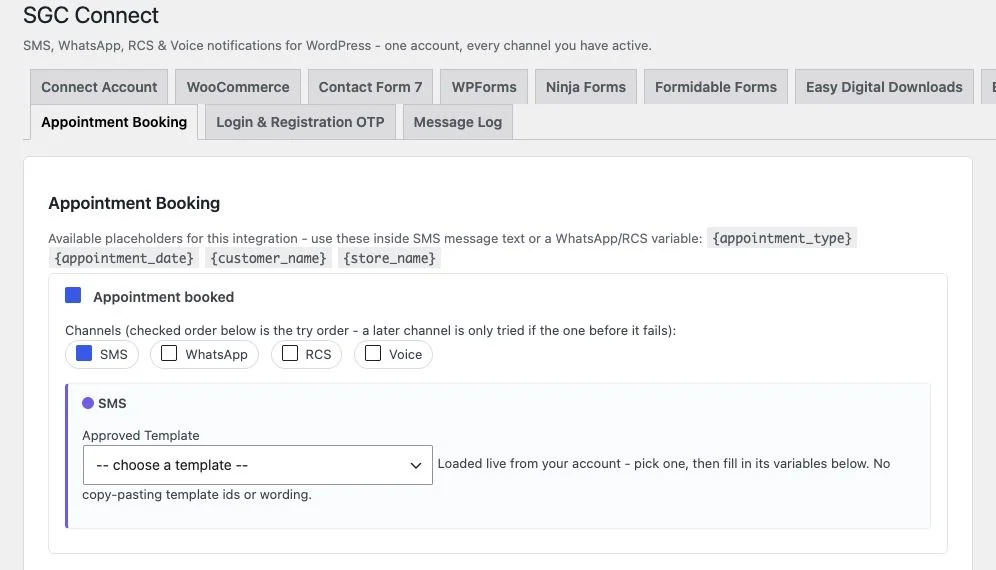
What the Appointment Booking module does
The module connects to Simply Schedule Appointments. When a customer books, cancels or is about to arrive, a message goes to the phone number they entered in the booking form.
Customers must enter a phone number when booking. If the Phone field is off in the appointment type, no message can be sent.
Placeholder tokens
Use these inside template variables to put live values in the message.
{appointment_type}{appointment_date}{customer_name}{store_name}Events you can notify
| Event | When it is sent |
|---|---|
| Appointment booked | Sent when a booking is made. |
| Appointment canceled | Sent when a booking is cancelled. |
| Appointment starting soon | Sent once, 60 minutes before the start time, by WP-Cron. |
Every event has its own switch, channel choice (SMS, WhatsApp, RCS, Voice, with fallback in the order ticked) and approved template.
How to set it up
- In Simply Schedule Appointments, open your appointment type and turn on the Phone field under Customer Information.
- Open the Appointments tab in SGC Connect and switch on the events you want.
- Choose channels and templates, and map {appointment_type}, {appointment_date} and {customer_name}.
- Make a test booking and check the Message Log.
Good ways to use it
- Clinics, salons and consultants confirming bookings automatically.
- One hour reminders that protect your calendar.
- Cancellation notices that free up slots quickly.
Get SGC Connect for Appointment Booking
Free from WordPress.org. Connect your SMSGatewayCenter account and start sending in minutes.
Appointment Booking with SGC Connect: FAQ
In Simply Schedule Appointments, open your appointment type and turn on the Phone field under Customer Information. Customers must enter a number when booking.
Once, 60 minutes before the appointment starts, using WP-Cron.