
Ninja Forms SMS & WhatsApp Notifications
Confirm every Ninja Forms entry instantly. SGC Connect picks up the Phone field and sends your approved template on the channels you choose.
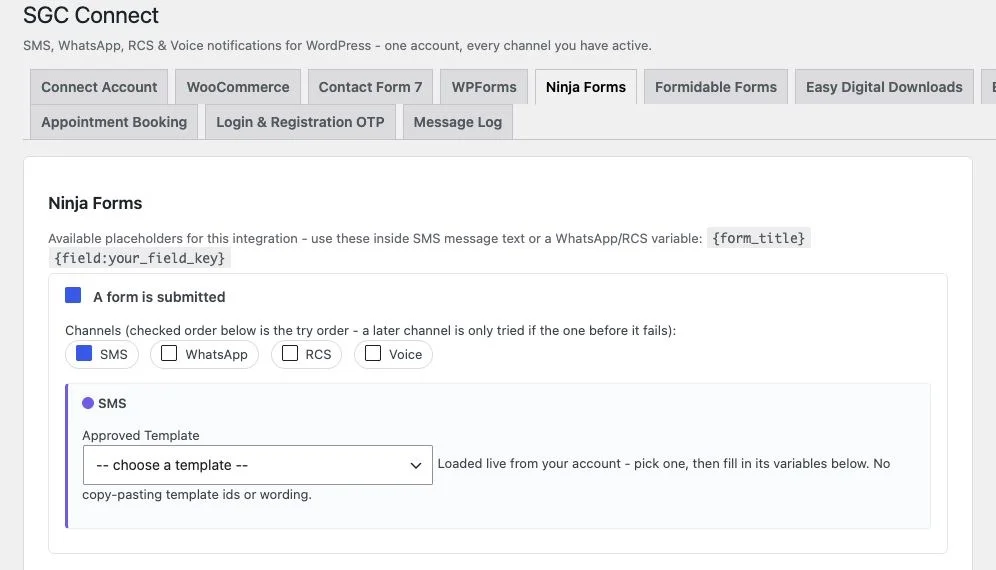
What the Ninja Forms module does
The Ninja Forms module runs after a successful submission and sends to the number in the form's Phone field. Field values are available in the message through each field's key, shown in the Ninja Forms builder.
Forms without a Phone field send nothing.
Placeholder tokens
Use these inside template variables to put live values in the message.
{form_title}{field:your_field_key}Events you can notify
| Event | When it is sent |
|---|---|
| A form is submitted | Sent after Ninja Forms processes the submission. |
Every event has its own switch, channel choice (SMS, WhatsApp, RCS, Voice, with fallback in the order ticked) and approved template.
How to set it up
- Add a Phone field to your Ninja Forms form.
- Open the Ninja Forms tab in SGC Connect and turn on the submit event.
- Choose channels and a template.
- Use {field:your_field_key} with the key from the builder, then save.
- Send a test submission and review the Message Log.
Good ways to use it
- Enquiry and quote forms that acknowledge instantly.
- Newsletter or offer signup confirmations.
- Support request forms that return a reference.
Get SGC Connect for Ninja Forms
Free from WordPress.org. Connect your SMSGatewayCenter account and start sending in minutes.
Ninja Forms with SGC Connect: FAQ
The form's Phone field.
In the Ninja Forms builder, open the field and look at its Administration settings for the field key.