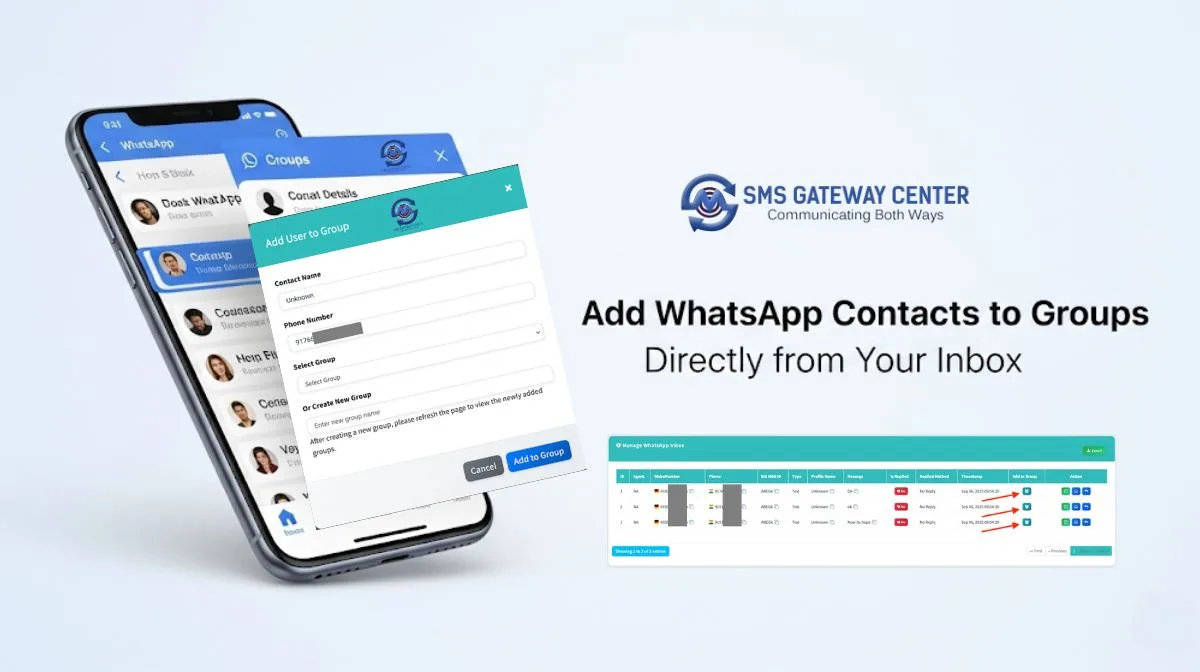
This innovative feature transforms your WhatsApp inbox from a simple message viewer into a comprehensive contact management hub, enabling you to organize your contacts efficiently while maintaining context from their original conversations.
Key Features and Benefits
�� Core Features:
- One-Click Group Addition: Add contacts to groups with a single click from the inbox
- Smart Modal Interface: Pre-populated contact details (name and phone number) for quick processing
- Flexible Group Management: Choose from existing groups or create new ones on the fly
- Persistent State Tracking: System remembers which contacts have already been added to groups
- Real-time Updates: Instant visual feedback when contacts are successfully added
- Duplicate Prevention: Built-in checks to prevent adding the same contact multiple times
�� Business Benefits:
- Time Efficiency: Reduce contact management time by up to 70%
- Improved Organization: Better categorize your WhatsApp contacts for targeted marketing
- Enhanced Workflow: Seamless integration between inbox management and group administration
- Reduced Errors: Automated data population minimizes manual entry mistakes
- Better User Experience: Intuitive interface that requires minimal training
- Scalable Solution: Handle large volumes of contacts without performance issues
🎯 Use Cases:
- Customer Segmentation: Group customers by demographics, interests, or purchase history
- Marketing Campaigns: Organize contacts for targeted promotional messages
- Support Management: Create groups for different support tiers or issue categories
- Lead Nurturing: Group prospects based on their stage in the sales funnel
- Event Management: Organize contacts for specific events or announcements
Step-by-Step Tutorial: How to Use the Add User to Group Feature
Step 1: Access Your WhatsApp Inbox
- Log into your SMS Gateway Center dashboard
- Navigate to the WhatsApp -> Message Logs section
- Click on “Inbox” to view your incoming messages
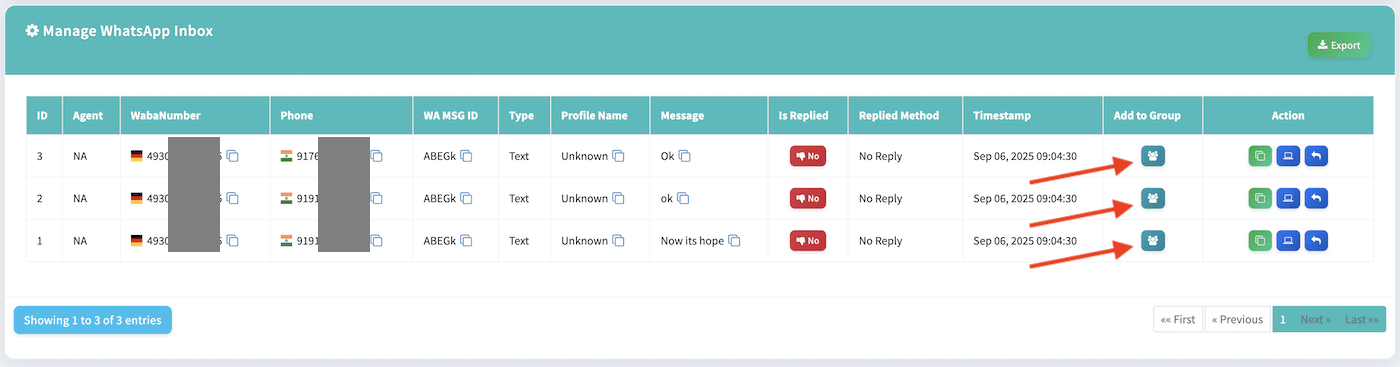
- You’ll see a new “Add to Group” column in your inbox table
Step 2: Identify Contacts to Add
- Browse through your inbox messages
- Look for the blue “Add to Group” button (👥 icon) in the “Add to Group” column
- Only contacts that haven’t been added to groups will show this button
- Click on the button for the contact you want to add
Step 3: Configure Contact Details
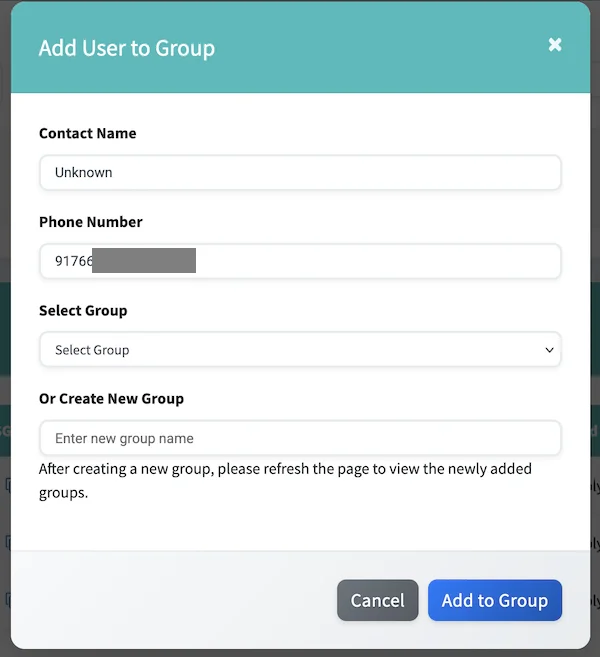
- A modal window will open with pre-filled information:
- Contact Name: Automatically populated from the profile name
- Phone Number: Pre-filled and read-only for accuracy
- Review and modify the contact name if needed
- The phone number cannot be changed to prevent errors
Step 4: Select or Create a Group
Option A: Add to Existing Group
- Click on the “Group” dropdown menu
- Select from your existing groups
- The “New Group Name” field will be disabled
Option B: Create a New Group
- Leave the “Group” dropdown as “Select Group”
- Enter a name for your new group in the “New Group Name” field
- The system will create the group and add the contact to it
Step 5: Submit and Confirm
- Click the “Add to Group” button to submit
- Wait for the success confirmation message
- The modal will close automatically
- The “Add to Group” button will disappear, indicating the contact has been added
- The contact is now saved in your contacts database with the selected group
Step 6: Verify the Addition
- Navigate to your Contacts section
- Search for the contact you just added
- Verify that the contact appears with the correct group assignment
- Check that the group was created (if you created a new one)
Pro Tips for Maximum Efficiency
- Batch Processing: Process multiple contacts in sequence for faster workflow
- Group Naming Convention: Use consistent naming patterns for easier group management
- Regular Cleanup: Periodically review and organize your groups
- Use Descriptions: Add meaningful descriptions to your groups for better organization
Troubleshooting Common Issues
- Button Not Appearing: Contact may already be added to a group
- Modal Not Opening: Check browser JavaScript settings
- Group Not Created: Verify you have permission to create groups
- Contact Not Saved: Ensure all required fields are filled
💡 Want a step-by-step guide? Check out our detailed knowledge base article:
👉 How to Add WhatsApp Contacts to Groups Directly from Your Inbox
Related Article:
5 Common WhatsApp Business API Integration Challenges and How to Overcome Them
Unlock the Full Potential of WhatsApp Business API with These 5 Expert Tips
Found this useful?Add as Preferred Source on Google