Table of Contents
- The Short Answer
- TL;DR
- What Each Channel Actually Lets You Do
- Where Should the Schedule Live?
- Scheduling an SMS, Start to Finish
- One ID, Three Names
- The Time Zone Problem
- Finding the Time Zone With One Test Booking
- WhatsApp: You Can Book It, but You Can’t Take It Back
- RCS and Telegram: Bring Your Own Clock
- Promotional Hours and Store and Forward
- What Can Go Wrong While a Message Waits
- The Cancel That Arrives Too Late
- Putting It Together: A Hybrid Scheduler
- The Schedule Table
- Checking Your Schedule Against the Platform
- Code: Four Samples, Four Gotchas
- Which Path Should This Message Take?
- Testing a Scheduler Without Waiting for the Clock
- Before You Go Live
- Unspecified Behaviour and How to Code Around It
- FAQs
The Short Answer
SMS is the only channel where the API lets you schedule a message and then change your mind. You add scheduleTime to SMSApi/send, and later you can list it, move it or cancel it with the SMSApi/schedule/read, update and delete endpoints.
WhatsApp will take a scheduletime on WAApi/send (note the lower-case t, and no seconds), but that’s a one-shot deal. There’s no way to look at it, move it or cancel it afterwards. RCS and Telegram don’t accept a schedule time through the API at all.
So if your app has a “send later” button, you’re going to end up running your own scheduler anyway. The sensible setup is to keep every scheduled message in your own database, send RCS and Telegram yourself when the time comes, and only hand SMS over to the platform shortly before it’s due, once you’ve confirmed which time zone it reads your timestamps in.
Two other things will bite you if you don’t plan for them. The API never tells you what time zone it uses, but its read endpoint returns plain epoch timestamps, so one test booking is enough to find out. And if you send promotional SMS outside the allowed hours, the Store and Forward OWH setting can quietly hold it until the next morning.
TL;DR
| Question | Answer |
|---|---|
| Which channels can I schedule through the API? | SMS (scheduleTime on SMSApi/send) and WhatsApp (scheduletime on WAApi/send). RCS and Telegram can’t be scheduled through the API. |
| Which ones can I change or cancel afterwards? | Only SMS, with SMSApi/schedule/read, SMSApi/schedule/update and SMSApi/schedule/delete. Split campaigns move with SMSApi/campaign/update. |
| What format do they want? | SMS: YYYY-MM-DD HH:MM:SS. WhatsApp: YYYY-MM-DD HH:MM. Neither takes a time zone or offset. |
| What do I get back when I read a booking? | uuId, status, total, timestamp, scheduledTimestamp, lastupdatedTimestamp, all as strings, times in epoch milliseconds. |
| What’s the ID called? | Depends where you look: transactionId when you send, uuid when you update or delete, uuId when you read. It’s the same value. Keep it as text. |
| What time zone does it use? | Don’t assume. Book one test send, read it back, and compare. |
| What about promotional hours? | Promotional and service-explicit SMS sent outside the posting window can be held until it reopens. Transactional SMS always goes straight out. |
| Where should my schedule live? | In your own database. Treat the platform’s scheduler as a last-minute handoff for SMS. |
| What should I check right before sending? | Balance, template status, sender ID, whether the person opted out, and whether anyone cancelled. |
What Each Channel Actually Lets You Do
When you schedule anything, you need to know six things: can I book it, what format does it want, can I see it afterwards, can I move it, can I cancel it, and what ID do I use to do all that? Here’s how the four channels answer.
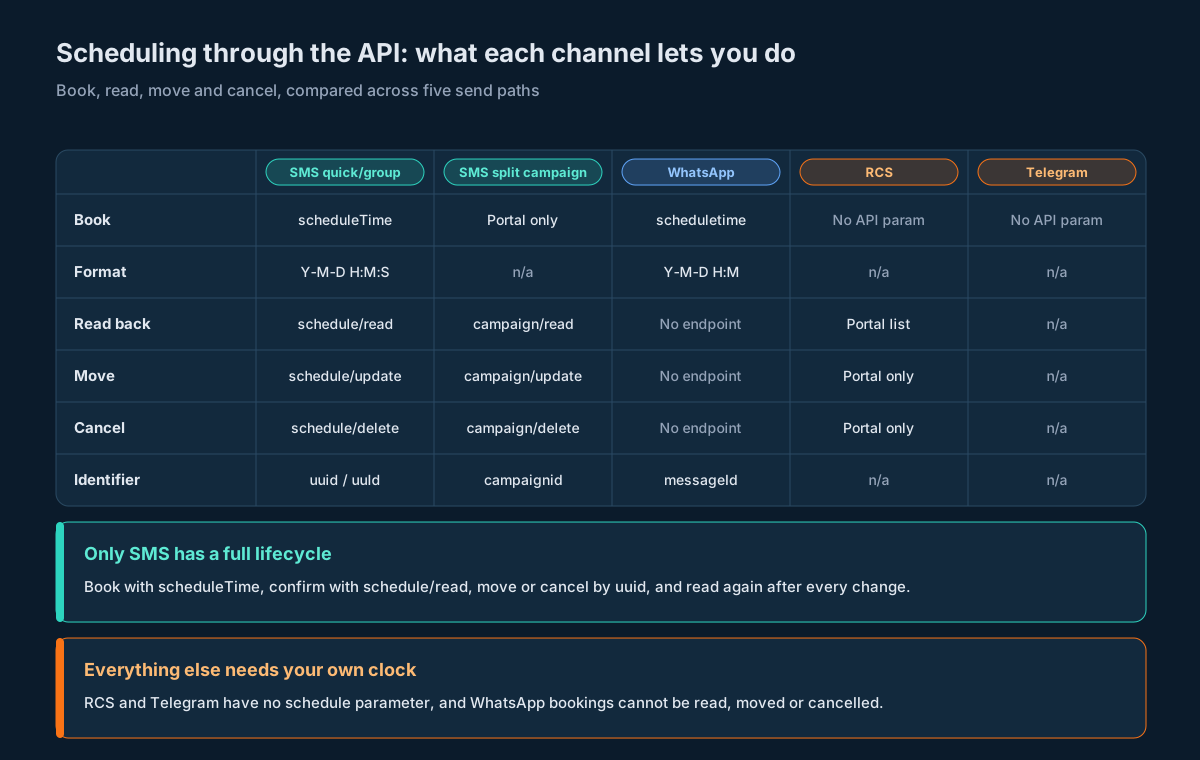
| Capability | SMS (quick, group, file) | SMS split campaign | RCS | Telegram | |
|---|---|---|---|---|---|
| Book a future send | scheduleTime on SMSApi/send | Created in the portal | scheduletime on WAApi/send | No API parameter | No API parameter |
| Format | YYYY-MM-DD HH:MM:SS | n/a | YYYY-MM-DD HH:MM | n/a | n/a |
| Read back | SMSApi/schedule/read | SMSApi/campaign/read | No endpoint | Portal list only | n/a |
| Move | SMSApi/schedule/update (uuid, scheduletime) | SMSApi/campaign/update (campaignid, scheduletime) | No endpoint | Portal only | n/a |
| Cancel | SMSApi/schedule/delete (uuid) | SMSApi/campaign/delete | No endpoint | Portal only | n/a |
| Identifier | transactionId -> uuid -> uuId | campaignid plus per-batch uuId | messageId | n/a | n/a |
SMS is the easy one. You book it, you get an ID back, and with that ID you can look it up, move it or cancel it whenever you like. That’s what makes it safe to let the platform hold an SMS for you.
WhatsApp is the trap. Booking works fine, but the WhatsApp section of the API reference has sending, media, templates, reports, inbox and analytics, and nothing for schedules. Once you’ve sent scheduletime, that message is going out at that time and there’s nothing you can do about it.
RCS is a bit odd. You can schedule RCS campaigns in the portal, and the RCS scheduling help article shows how to change or cancel them there. But RCSApi/send only takes sendMethod, msgType, format, botId, msg, mobile and an optional identifier. No schedule time. Telegram‘s rest/tg/v1/send is the same story. If you’re integrating through the API, both of them are send-now only.
Which means if you offer scheduling on more than one channel, you’re writing a scheduler. There’s no way around that. What you get to decide is how much of the actual sending you let the platform do.
Where Should the Schedule Live?
You’ve got three options, and they each fail in their own way.
You can let the platform hold it. You submit the message now with a future time, and it goes out on schedule even if your whole stack is down. That’s genuinely useful: a bad deploy at 08:59 won’t make you miss a 09:00 reminder. The downside is that the message is now frozen. You can still move or cancel an SMS, but you can’t edit the text, and on WhatsApp you can’t do anything at all.
You can hold it yourself. Store it in your database and have a worker send it (without any schedule parameter) when it’s due. Now you can change the text, re-check consent and cancel right up to the last second, and the same code works for every channel. The cost is that if your worker is down at 09:00, the message is late.
Or you can do both, which is what we’ll build here. Your database is always the master copy. A little before an SMS is due, a worker hands it to the platform with scheduleTime, saves the ID, and reads the booking back to make sure it’s right. If something changes after that, you call update or delete. RCS, Telegram, and any WhatsApp message someone might want to cancel never get handed off; your own worker sends them when they’re due.
Here’s how the three stack up:
| Platform holds it | You hold it | Both | |
|---|---|---|---|
| Works on all four channels | No | Yes | Yes |
| Still sends if your workers are down | Yes, on SMS and WhatsApp | No | Yes, once handed off |
| Can edit the text after booking | No (cancel and rebook on SMS) | Yes | Yes, until handoff |
| Can cancel right up to send time | SMS only | Yes | Yes, with delete after handoff on SMS |
| Consent re-checked before sending | No | Yes | Yes, up to handoff |
| One place to see everything scheduled | No, read is SMS-only and unfiltered | Yes | Yes |
Scheduling an SMS, Start to Finish
Everything below hits https://unify.smsgateway.center/. Send the apikey header with userid on each call; the header works on every endpoint.
To book, POST to SMSApi/send exactly as you normally would (sendMethod, mobile or group, msg, senderid, msgType, output) and add scheduleTime. Both the quick and group send pages list it as “Date format YYYY-MM-DD HH:MM:SS”. The response looks just like a normal send:
{
  "status": "success",
  "mobile": "919999999999",
  "invalidMobile": "",
  "transactionId": "6305583318236810379",
  "statusCode": "200",
  "reason": "success"
}
Save that transactionId straight away, as text. Without it you can’t move or cancel the message later. If your outbound message table already keeps it for delivery reports, good, just make sure scheduled sends write it too.
To see what’s pending, call SMSApi/schedule/read (POST or GET) with output=json. You can’t filter it or page through it. It just returns everything:
{
  "response": {
    "api": "schedule",
    "action": "read",
    "status": "success",
    "msg": "success",
    "code": "200",
    "count": 1,
    "scheduleList": [
      {
        "schedule": {
          "uuId": "5718742519829975000",
          "status": "pending",
          "total": "1",
          "timestamp": "1562974594713",
          "scheduledTimestamp": "1564529760000",
          "lastupdatedTimestamp": "0"
        }
      }
    ]
  }
}
A couple of things to notice. Each row is wrapped in a schedule object. count is a real number, but total (how many recipients) is a string. The three timestamps are epoch milliseconds, also as strings: timestamp is when you booked it, scheduledTimestamp is when it’ll go out, and lastupdatedTimestamp of "0" just means nobody has moved it yet. It’s not a date in 1970.
To move a booking, POST to SMSApi/schedule/update with uuid, the new scheduletime (same format) and output. The page says it’s POST only. You’ll get back "msg":"Schedule time updated successfully." with "status":"success".
To cancel, POST to SMSApi/schedule/delete with uuid and output. You’ll get "msg":"Schedule deleted successfully".
Neither of those tells you what things look like afterwards, so read the list again and check. It’s one extra call, and it means you actually know the booking moved or disappeared instead of just trusting a success message.
Split campaigns, where one booking goes out in several batches, work the same way but use campaignid: SMSApi/campaign/read (with campaignid, optional uuid, fromdate, todate), SMSApi/campaign/update (campaignid, scheduletime) and SMSApi/campaign/delete. You set those campaigns up in the portal, not through the API. The campaign splitting guide goes deeper, and everything below about time zones and promotional hours applies to them as well.
One ID, Three Names
This one catches people. The ID you use to manage a booking has a different name at every step:
| Where | Name | JSON type | Example |
|---|---|---|---|
SMSApi/send response | transactionId | quoted string | "6305583318236810379" |
SMSApi/schedule/update and /delete request | uuid | form field | uuid=83147103413249843 |
SMSApi/schedule/read response | uuId | quoted string | "5718742519829975000" |
It’s the same value every time. The easiest way to stay sane is to give it one name in your own code (something like provider_txn_id) and only deal with the three API spellings inside the bits of code that talk to the API.
The other thing: never let it become a number. These IDs can be nineteen digits. A double can only store whole numbers exactly up to 2^53, which is sixteen digits, so anything longer gets rounded. Push "6305583318236810379" through a JavaScript Number or a Python float and you get 6305583318236810240. Try to cancel with that and you’ll be cancelling something that doesn’t exist, while the real message goes out on time. The API sends these as quoted strings, so this only happens if your own code converts them: a stray parseInt, a BIGINT column in a language that maps it to a double, or a round trip through Excel. Store them as text, compare them as text, and you’re fine.
The Time Zone Problem
When you send 2026-10-05 09:30:00, you’re sending a clock reading, not a moment in time. 09:30 where? The API doesn’t take an offset, so the server decides.
The RCS scheduling help article mentions that the portal shows times “in your account’s time zone” and that the update screen shows “the current server time” for reference. So there are at least two clocks around, and nothing tells you which one the API uses for your timestamp.
If your account is in India, it’s almost certainly IST (UTC+05:30) and you’d probably be fine guessing. But don’t bake that guess into your code, because:
- If you’re wrong, everything is off by five and a half hours. Your 09:00 reminder lands at 14:30, or, if you’re wrong the other way, your promotional blast goes out at 03:30 and runs straight into restricted hours.
- Your servers are probably on UTC. Somebody writes
datetime.now() + timedelta(hours=2), gets a UTC clock time, and it works fine on their laptop in Bengaluru and breaks in production. - Not every account is in India, and an account’s zone setting won’t always match the default.
Luckily you don’t have to guess. The read endpoint gives you back epoch milliseconds, which don’t have a time zone. Compare that with what you sent and you know exactly how your timestamp was read.
Finding the Time Zone With One Test Booking
You only need to do this once per account, and again if someone changes the account’s settings.
Step one: book a test send. Pick a number you own, a transactional template, and a time at least a day away at an easy-to-spot minute, say 2026-10-09 11:17:00. Note exactly what you sent and the transactionId you got back.
Step two: read it back. Call SMSApi/schedule/read, find the row whose uuId matches your transactionId (compare them as strings), and take its scheduledTimestamp.
Step three: see which zone matches. Convert your timestamp to epoch milliseconds as if it were UTC, then as if it were Asia/Kolkata, and any other zone you suspect. One of them will match what came back.
Step four: save it and clean up. Store the zone against the account, cancel the test with SMSApi/schedule/delete, and read once more to make sure it’s gone.
from datetime import datetime
from zoneinfo import ZoneInfo

def epoch_ms(wall: str, tz: str) -> int:
    dt = datetime.strptime(wall, "%Y-%m-%d %H:%M:%S").replace(tzinfo=ZoneInfo(tz))
    return int(dt.timestamp() * 1000)

def infer_zone(sent_wall: str, returned_ms: str, candidates: list[str]) -> str | None:
    target = int(returned_ms)            # quoted string on the wire; parse locally only
    for tz in candidates:
        if epoch_ms(sent_wall, tz) == target:
            return tz
    return None                          # no match: stop and investigate, do not default

zone = infer_zone("2026-10-09 11:17:00", "1791524820000",
                  ["UTC", "Asia/Kolkata"])
If nothing matches, don’t just fall back to IST. Either you grabbed the wrong row or the platform is using a zone you didn’t think of, and you want a human to look at that before real customers get scheduled messages.
To give you something to check against: 2026-10-09 11:17:00 in IST is 1791524820000. If you get 1791544620000 back, the platform treated it as UTC.
You can’t do this on WhatsApp because there’s nothing to read back. Use the zone you found for SMS, then send yourself one scheduled WhatsApp message and check when it actually arrives on your phone.
WhatsApp: You Can Book It, but You Can’t Take It Back
WAApi/send has an optional scheduletime field. The docs describe it as “Add your schedule Timestamp in YYYY-MM-DD HH:MM format” and give 2026-10-03 07:13 as the example. Three things are different from SMS.
The name is all lower case. SMS uses scheduleTime, WhatsApp uses scheduletime. If you have one shared helper for both, one of them is getting the wrong parameter. Keep a small adapter per channel that knows its own field names, which is what the WhatsApp wire contract guide recommends for that endpoint in general.
There are no seconds. If your message is due at 09:29:40 and you format it as %H:%M, you’ll send 09:29 and it goes out twenty seconds early. Usually nobody cares. But if you’ve promised a sale opens at 09:30 sharp, or you’re right at the edge of quiet hours, round up to the next minute instead. Write that down in the code, because every date library truncates by default and someone will “fix” it later.
And you can’t undo it. The response gives you status, messageId, mobile, a numeric statusCode and a description, and that’s the end of your involvement. There’s no endpoint to look it up, move it or cancel it. If the customer changes their mind, the template gets paused, or the recipient opts out in the meantime, the message still goes.
So only use WhatsApp’s scheduletime when:
- the send is soon (minutes or a few hours away),
- the template and the values in it are final,
- nobody else in your system can cancel or edit it once it’s booked, and
- if a cancellation slipped through, it would be embarrassing rather than a compliance problem.
If any of those aren’t true, keep the message in your own scheduler and send it normally when it’s due. You lose the “still sends if we’re down” safety net, but the hybrid setup later on gives you that back for the messages that really need it.
Also keep in mind that business-initiated WhatsApp messages need an approved template, and here both whatsAppStatus and systemStatus have to be clear. A template that was approved when you booked might not be when the message goes out. If you’re sending it yourself, you can check right before. If the platform’s holding it, you’ll only find out from the delivery report.
RCS and Telegram: Bring Your Own Clock
There’s no scheduling on RCSApi/send or rest/tg/v1/send, so it’s on you. That’s not as bad as it sounds, because you need a decent scheduler for the other channels anyway, and the same one works here.
What it needs to do:
- Grab due messages safely. Something like
SELECT ... WHERE fire_at <= now() AND state = 'scheduled' FOR UPDATE SKIP LOCKED LIMIT 100lets several workers pull from the same table without two of them picking up the same message. - Mark the row as
sendingin that same transaction, before you call the API. That way, if the worker crashes halfway, the message doesn’t come back asscheduledand go out twice. - Guard against duplicates. RCS has an optional
identifierfield; put your row’s ID in it so a duplicate at least shows up in reports. Telegram’s response doesn’t give you per-recipient results, so retrying after a timeout needs some thought. The idempotency guide walks through it. - Record when it actually went out. Keep
fired_atnext tofire_at. The gap is how late you were, and that’s the first number you should be alerting on. - Respect the rate limits. Telegram’s bot setup has a
tpsvalue and RCS bots have their own throughput. If 50,000 messages are all due at 09:00:00, some of them are going out at 09:00:40. Decide whether that’s acceptable before a customer asks.
One oddity on RCS: the portal’s RCS Scheduled List lets you filter by where a campaign came from, and “API” is one of the options. But there’s no API parameter for creating a scheduled RCS campaign. Go by what the send endpoint actually accepts, and if you ever see an RCS schedule that came from the API, test it before you depend on it.
On Telegram, the thing to watch for is people blocking your bot. You send to a chatId or phoneNumber, and a chat that worked when you booked the message might be blocked by the time it goes out. You’ll see that as a failed delivery in the Telegram delivery report, and you deal with it like any other failure.
Promotional Hours and Store and Forward
In India you can’t send promotional SMS whenever you like. The platform’s Store and Forward OWH announcement says promotional SMS is blocked between 9 PM and 9 AM, and that the allowed window is “typically 9 AM to 9 PM as per TRAI guidelines”. The rules come from TRAI’s Telecom Commercial Communications Customer Preference Regulations.
Store and Forward OWH (it stands for Outside Working Hours) is a switch under Profile, SMS Attributes. Here’s what it does:
- If it’s on, any promotional or service-explicit message sent outside the window gets queued and goes out when the window opens. In your SMS logs it shows as “Queued”. This works for API sends too.
- If it’s off, those messages “may fail or be rejected”.
- Transactional messages (OTPs, alerts, notifications) aren’t affected either way. They always go out immediately.
- You can see your account’s exact window under Profile, SMS Attributes, “Posting Hours”.
That has some knock-on effects for scheduling.
If someone schedules a promotional message for 22:30 and OWH is on, it won’t go at 22:30. It’ll go the next time the window opens. Your database says one thing, the delivery report says another, and your user is confused. The fix is to check promotional schedules against the posting window when they’re created and either reject them or move them, so the time your user sees is the time it really goes.
Big sends near closing time can get cut in half. If a large promotional send is booked for 20:55 and takes more than five minutes to submit, the last chunk either waits until morning (OWH on) or fails (OWH off). Finish promotional sends well before closing, with enough buffer for your volume.
Don’t try to predict when a held message will go. The same announcement says a Friday 11 PM send goes out “Saturday at 9 AM” in one place and “the next business day (typically Monday)” in another. If you need the real time, read it off the delivery report.
And time zones come up again. The window is in Indian time, so if you store UTC and haven’t pinned the platform’s zone, you can’t even tell whether 03:30 UTC (09:00 IST) is inside the window.
| Message type | Booked inside the window | Outside the window, OWH on | Outside the window, OWH off |
|---|---|---|---|
| Transactional (OTP, alerts) | Goes out on time | Goes out on time | Goes out on time |
| Service-explicit | Goes out on time | Held until the window opens | May fail or be rejected |
| Promotional | Goes out on time | Held until the window opens | May fail or be rejected |
What Can Go Wrong While a Message Waits
A scheduled message was written with yesterday’s information. Plenty can change before it goes out, and whether you can catch it depends on who’s holding the message.
| What changes | Example | If you’re holding it | If the platform’s holding it |
|---|---|---|---|
| Balance | Wallet runs low before send time | Check before you send | Not clear when it’s charged; keep a reserve |
| DLT template | Deleted, edited (back into approval) or mismatched | Re-check the template | You see a failed DLR, e.g. Template Mismatch |
| Sender ID | Deleted or no longer linked to the template | Re-check senders | You see a failed DLR |
| WhatsApp template | Paused, rejected, systemStatus changed | Re-check the template list | Can’t be stopped |
| Consent | Person opts out | Check your suppression list | SMS: delete the booking. WhatsApp: can’t be stopped |
| Content | Price, stock or appointment changes | Rebuild the message at send time | SMS: delete and rebook. WhatsApp: can’t be changed |
| Posting hours | Window isn’t what you assumed | Check against the window | May be held or rejected |
Balance and consent are the two that cause real trouble.
On balance: the mobile app scheduling guide says scheduled SMS are “charged when message is sent, not when scheduled”, that cancelling early costs nothing, and that if your balance is too low at send time the message fails. The SMS pricing terms say credits come off “while sending SMS” and can’t be refunded once the message reaches the operator. So having plenty of credit when you book means nothing. Keep a running total of everything you’ve got scheduled, treat it as already spent, and alert when what’s left gets thin. The invoice reconciliation guide shows how to read your balance and credit history through the API.
On consent: when someone opts out, that has to stop messages that are already scheduled, not just new ones. If the message is sitting on the platform, your opt-out handler has to go and delete it, which only works for SMS and only if you saved the ID. For WhatsApp, the simple answer is to never hand off a message that someone might reasonably want to cancel.
The Cancel That Arrives Too Late
Sooner or later someone hits “cancel” at the exact moment the message is being sent. You can’t stop that from happening, but you can make sure the result is clear.
If you’re holding the message, the database sorts it out. The cancel does SET state = 'cancelled' WHERE id = ? AND state = 'scheduled', and the worker claims rows with ... WHERE state = 'scheduled' FOR UPDATE SKIP LOCKED. Only one of them can win. If the cancel touches zero rows, the message is already going, and the user should see “too late to cancel”, not a cheerful “cancelled”.
If the platform’s holding an SMS, it’s your SMSApi/schedule/delete against the platform’s sender. Delete just says success, and nobody can tell you what it does to a message that’s already started going out. So set things up so you never need to know:
- Pick a cutoff, say ten minutes before send time. Once a handed-off message is inside that window, cancelling isn’t allowed and the user is told it’s too late.
- Before the cutoff, call delete and then read the schedule list. If the
uuIdis gone, mark it cancelled. If it’s still there, try once more, then raise it with a person. - After the send time, look at the delivery report for that
transactionId. If there are rows, it went out, whatever delete said.
The cutoff is the whole trick. You simply never ask the platform to cancel something that’s close enough to sending for the answer to be a coin toss.
Putting It Together: A Hybrid Scheduler
The whole design rests on one rule: your database is the truth about what’s scheduled. The platform’s scheduler is just something you use at the last minute, for SMS only, and you always check its work.
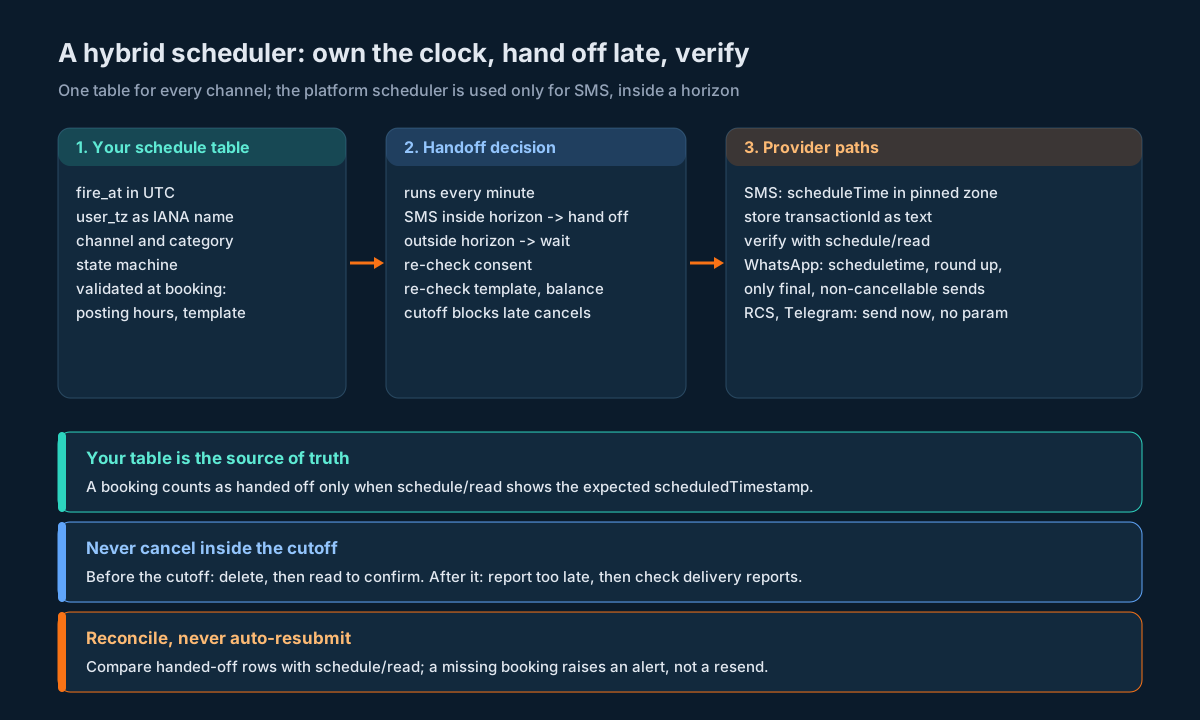
There are six moving parts.
The schedule table holds every scheduled message for every channel: when it’s due (in UTC), the time zone the user picked, the channel, whether it’s transactional, service-explicit or promotional, its current state, and the platform’s ID once it has one.
The validator runs when someone creates a schedule. It says no to promotional or service-explicit messages outside posting hours, says no to WhatsApp times that need second-level precision, and makes sure the template and sender are usable right now.
The handoff worker runs every minute. It looks for SMS messages due within the handoff window (for example, somewhere between ten minutes and two hours from now). For each one it re-checks consent, the template and the balance, formats the time in the account’s zone, submits it with scheduleTime, saves the transactionId as text, and reads the booking back. Only when the scheduledTimestamp it reads back matches what it expected does the row move from scheduled to handed_off.
The dispatcher runs constantly and sends anything that’s due and wasn’t handed off: all RCS and Telegram messages, WhatsApp messages (unless you’ve decided to let short-notice ones go to the platform), and any SMS whose handoff failed. It sends without a schedule parameter.
The cancel handler checks the state first. Still scheduled? Cancel it locally. handed_off and outside the cutoff? Call SMSApi/schedule/delete and read to confirm. Inside the cutoff or already sending? Tell the user it’s too late.
The reconciler runs every few minutes, pulls SMSApi/schedule/read, and compares it with everything you’ve handed off. There’s more on that below.
You might wonder why we don’t just hand SMS to the platform as soon as it’s booked. It’s because every minute a message sits over there, things can change (consent, content, the template, your balance) and your checks won’t see them. Handing off late gives you the platform’s reliability for the last stretch and your own checks for everything before it.
The lower edge of that window matters too, because it’s your cancellation cutoff. If you hand off ten minutes early, nothing in those last ten minutes can be cancelled on the platform. Say so in your UI.
The Schedule Table
Here’s a minimal PostgreSQL version that supports everything above:
CREATE TABLE scheduled_message (
    id                 BIGSERIAL PRIMARY KEY,
    account_id         BIGINT      NOT NULL,
    channel            TEXT        NOT NULL CHECK (channel IN ('sms','whatsapp','rcs','telegram')),
    category           TEXT        NOT NULL CHECK (category IN ('transactional','service_explicit','promotional')),
    fire_at            TIMESTAMPTZ NOT NULL,          -- the instant, always UTC in storage
    user_tz            TEXT        NOT NULL,          -- IANA name the user picked, e.g. Asia/Kolkata
    payload            JSONB       NOT NULL,          -- template key, variables, recipients
    state              TEXT        NOT NULL DEFAULT 'scheduled'
                       CHECK (state IN ('scheduled','handed_off','sending','sent','cancelled','failed')),
    provider_txn_id    TEXT,                          -- transactionId / uuid / uuId, never numeric
    handed_off_at      TIMESTAMPTZ,
    provider_fire_ms   BIGINT,                        -- scheduledTimestamp from read-back
    fired_at           TIMESTAMPTZ,
    cancel_requested_at TIMESTAMPTZ,
    last_error         TEXT,
    created_at         TIMESTAMPTZ NOT NULL DEFAULT now()
);

CREATE INDEX scheduled_due   ON scheduled_message (fire_at) WHERE state = 'scheduled';
CREATE UNIQUE INDEX scheduled_provider ON scheduled_message (provider_txn_id) WHERE provider_txn_id IS NOT NULL;
Why it’s shaped like this:
fire_atanduser_tzare separate, and there’s no local time string. If someone in a daylight-saving country books “every Monday at 10:00”, you work out each Monday’s exact time from their zone. India doesn’t change its clocks, but your customers’ customers might.provider_txn_idis text and unique. It’s what you join on when reconciling and when ingesting delivery reports, and the unique index catches the bug where two rows both think they own the same booking.provider_fire_msstores what the platform said, not what you sent. With both, you’ll notice if the platform ever starts reading times differently.cancel_requested_atis kept apart fromstate, so a cancel that lost the race still leaves a trail. That’s exactly what support needs when a customer says “but I cancelled that”.
If you already have an outbound message table, keep this one separate and link them by ID. A schedule is a plan; an outbound row is an attempt. One schedule might produce no attempts (it was cancelled) or several (a split campaign).
Checking Your Schedule Against the Platform
SMSApi/schedule/read returns every pending SMS booking on the account, with no filters and no paging. That’s great as a cross-check and useless as your main list. Run it on a timer and sort out any differences:
| Your row | On the platform | What it means | What to do |
|---|---|---|---|
handed_off, still in the future | There, same scheduledTimestamp | All good | Nothing |
handed_off, still in the future | There, different scheduledTimestamp | Someone moved it outside your system (portal, another integration) | Alert and decide which side wins |
handed_off, still in the future | Missing | Cancelled elsewhere, or never booked | Alert, check delivery reports before resending |
handed_off, time has passed | Missing | It went out | Wait for delivery reports to mark it sent |
handed_off, time has passed | Still there | It’s late or stuck | Alert on lateness |
| No row on your side | There | Someone else booked it on this account | Alert, then adopt or delete by policy |
cancelled | Still there | Your delete didn’t stick | Retry, escalate if it keeps happening |
A few things to keep in mind.
Compare IDs as text. Match uuId to provider_txn_id as strings. Only turn scheduledTimestamp into a number for the time comparison; at thirteen digits it fits safely in any 64-bit integer or double.
Lower-case the status. The API sample says "pending", while the portal’s scheduled message statuses are Pending, Sent, Failed and Processing.
Never resend something just because it’s missing. If it’s missing and past due, it almost certainly went out. If it’s missing and still in the future, someone probably cancelled it on purpose. Either way, a person should decide before anything gets sent again.
And expect bookings you didn’t make. The portal, the mobile app and other integrations can all schedule on the same account, and the read call shows all of it. Those rows aren’t errors, just things to know about.
Code: Four Samples, Four Gotchas
Each of these shows one mistake that’s easy to make. They all handle responses the same way: parse loosely, look only at status wherever that endpoint puts it, stop if it isn’t a success, and only then read the rest. None of them look at code or statusCode, and none of them try to parse msg or reason.
Python: book it, save the ID, then prove it worked
The gotcha: believing the send response. A booking only counts once the read endpoint shows it at the time you expected.
import requests
from datetime import datetime
from zoneinfo import ZoneInfo

BASE = "https://unify.smsgateway.center"

def book_sms(session, userid, apikey, pinned_tz, fire_at_utc, params):
    local = fire_at_utc.astimezone(ZoneInfo(pinned_tz))
    data = dict(params, userid=userid, output="json",
                scheduleTime=local.strftime("%Y-%m-%d %H:%M:%S"))
    r = session.post(f"{BASE}/SMSApi/send", data=data,
                     headers={"apikey": apikey}, timeout=30)
    body = r.json()
    if body.get("status") != "success":          # send puts status at top level
        return None, body
    txn = str(body["transactionId"])              # keep as text
    return txn, body

def verify_booking(session, userid, apikey, txn, fire_at_utc):
    r = session.post(f"{BASE}/SMSApi/schedule/read",
                     data={"userid": userid, "output": "json"},
                     headers={"apikey": apikey}, timeout=30)
    resp = r.json().get("response", {})
    if resp.get("status") != "success":           # schedule family nests it
        return False
    expected = int(fire_at_utc.timestamp()) * 1000
    for item in resp.get("scheduleList") or []:
        row = item.get("schedule", {})            # each row is wrapped
        if str(row.get("uuId")) == txn:
            return int(row.get("scheduledTimestamp", "0")) == expected
    return False
Save txn to your row before calling verify_booking. If the check fails, the row stays scheduled with the ID filled in, and the reconciler decides whether to delete the platform booking and let your own dispatcher send it instead.
Node.js: read the schedule list without mangling it
The gotcha: letting uuId turn into a Number, and treating "0" as a real date.
async function readSchedules(userid, apikey) {
  const res = await fetch("https://unify.smsgateway.center/SMSApi/schedule/read", {
    method: "POST",
    headers: { apikey, "content-type": "application/x-www-form-urlencoded" },
    body: new URLSearchParams({ userid, output: "json" }),
  });
  const text = await res.text();
  let parsed;
  try { parsed = JSON.parse(text); } catch { return { ok: false, raw: text }; }
  const r = parsed && parsed.response;
  if (!r || r.status !== "success") return { ok: false, raw: parsed };

  const list = Array.isArray(r.scheduleList) ? r.scheduleList : [];
  return {
    ok: true,
    rows: list.map(({ schedule: s = {} }) => ({
      providerTxnId: String(s.uuId),                    // compare as text only
      status: String(s.status || "").toLowerCase(),
      recipients: Number.parseInt(s.total, 10),
      createdMs: Number(s.timestamp),                    // 13 digits: safe
      fireMs: Number(s.scheduledTimestamp),
      updatedMs: s.lastupdatedTimestamp === "0" ? null : Number(s.lastupdatedTimestamp),
    })),
  };
}
This only keeps uuId intact because the API sends it in quotes. String(s.uuId) is a seatbelt, not a fix; if a value ever arrives without quotes, the damage is done before this line runs. The contract testing guide shows how to catch that at parse time and how to get a nightly alert if a quoted field changes type.
Java: format a WhatsApp time without sending early
The gotcha: no seconds. Truncating sends early, so round up.
import java.time.*;
import java.time.format.DateTimeFormatter;
import java.time.temporal.ChronoUnit;

public final class WhatsAppSchedule {
    private static final DateTimeFormatter WA = DateTimeFormatter.ofPattern("yyyy-MM-dd HH:mm");

    /** Returns the scheduletime value, or null if this send must stay in our own dispatcher. */
    public static String format(Instant fireAt, ZoneId pinnedZone, boolean cancellable, Duration horizon) {
        if (cancellable) return null;                                   // no cancel endpoint exists
        if (Duration.between(Instant.now(), fireAt).compareTo(horizon) > 0) return null;
        Instant rounded = fireAt.truncatedTo(ChronoUnit.MINUTES);
        if (rounded.isBefore(fireAt)) rounded = rounded.plus(1, ChronoUnit.MINUTES);  // never early
        return WA.format(rounded.atZone(pinnedZone));
    }
}
Send the result as the form field scheduletime, all lower case. If it returns null, the message stays with your own dispatcher and goes out on time without the parameter. The “should we hand this off?” decision lives in one function, with the reasons right there in the code.
PHP: check a promotional send against posting hours
The gotcha: PHP’s default time zone. On most cloud servers it’s UTC, so new DateTime('21:00') actually means 02:30 IST the next day.
<?php
function validatePromotionalSchedule(DateTimeImmutable $fireAtUtc, int $recipients,
                                     int $sendsPerMinute, string $open = '09:00',
                                     string $close = '21:00'): ?string {
    $ist   = new DateTimeZone('Asia/Kolkata');          // explicit, never the server default
    $local = $fireAtUtc->setTimezone($ist);
    $day   = $local->format('Y-m-d');
    $start = new DateTimeImmutable("$day $open:00", $ist);
    $end   = new DateTimeImmutable("$day $close:00", $ist);

    if ($local < $start || $local >= $end) {
        return 'outside posting hours';
    }
    $minutesNeeded = (int) ceil($recipients / max(1, $sendsPerMinute));
    $finish = $local->modify("+{$minutesNeeded} minutes");
    if ($finish > $end->modify('-15 minutes')) {
        return 'too close to closing time for this volume';
    }
    return null;                                          // valid
}
Take the open and close times from the account’s Posting Hours rather than hard-coding them, and base sendsPerMinute on throughput you’ve actually measured. The fifteen-minute buffer is a judgement call; pick something that covers your slowest real-world send rate.
Which Path Should This Message Take?
When you’re not sure where a particular message should be sent from, this table should settle it.
| If the message is… | Send it from | Because |
|---|---|---|
| SMS, transactional, more than two hours away | Your scheduler, then hand off inside the window | You keep your checks for most of the wait and get the platform’s reliability at the end |
| SMS, due soon, content final | Hand off now with scheduleTime | SMS can be read, moved and cancelled; read it back to confirm |
| SMS that the user might keep editing until the last minute | Your scheduler | Update only changes the time; editing the text means delete and rebook |
| An SMS split campaign built in the portal | The platform, moved with SMSApi/campaign/update | Campaigns are created in the portal; mirror them in your table by campaignid |
| Promotional SMS booked outside posting hours | Nowhere: reject it when it’s booked | Otherwise it gets held or rejected and the time you showed the user is wrong |
| WhatsApp, due soon, final, nobody can cancel it | Hand off with scheduletime, rounded up | Fine, because nothing can change |
| WhatsApp that anyone might cancel or edit | Your scheduler | There’s no read, update or delete for WhatsApp bookings |
| WhatsApp whose template might change before sending | Your scheduler | You can re-check whatsAppStatus and systemStatus right before sending |
| RCS, any time | Your scheduler | There’s no API schedule parameter |
| Telegram, any time | Your scheduler | There’s no API schedule parameter |
| Someone opts out and has messages pending | Cancel locally, delete any handed-off SMS | Only SMS bookings can be removed from the platform |
| Your dispatcher goes down at send time | Handed-off SMS and WhatsApp still go; the rest are late | Size the handoff window to cover the outages you actually expect for critical traffic |
Testing a Scheduler Without Waiting for the Clock
Schedulers are a pain to test because the interesting stuff happens at times you don’t want to sit and wait for. So separate the parts that need a real clock from the parts that don’t.
Pass the clock in. Every part of the system should ask an injected clock what time it is, never the system directly. In tests you just move it forward. That covers the validator, the handoff window, the cutoff and the dispatcher’s query without a single sleep.
Test the formatting with real edge cases. Give each channel adapter a list of times and the exact strings you expect back, and include the ones that break naive code: a WhatsApp time with seconds (has to round up), a time that crosses midnight once converted to IST, one second before the posting window closes, and something due on 31 December that tips into the next year.
Test the cancel race properly. Fire off two transactions at once, one cancelling and one claiming the same row, and check that exactly one wins. Do it a few hundred times in CI, because it won’t fail every time.
Check against the real platform now and then. Once a week on a staging account is plenty: run the time zone test, do a full book, read, move, read, delete, read cycle on SMS, and send yourself one scheduled WhatsApp message. Book things far in the future and delete them at the end so nothing actually gets delivered. You might be tempted to use testMessage=true on the SMS send, which does stop delivery, but you need a booking that shows up in the schedule list, so book it for real, delete it, and confirm the list is empty afterwards.
Watch for the API changing shape. The contract testing harness approach works well here: fingerprint the SMSApi/schedule/read response every night and get an alert if uuId stops being a string, the schedule wrapper disappears, or count changes type.
Measure lateness in production. Track fired_at - fire_at per channel as a histogram. If it creeps up through the day, your dispatcher needs more capacity. If it jumps at 21:00 and clears at 09:00, promotional messages are being held, which means something slipped past your validator. The observability guide shows how to turn that into an alert that warns you early instead of after the fact.
Before You Go Live
- Every schedule is saved as a UTC time plus an IANA time zone name, never as a local time string.
- You’ve run the time zone test for this account instead of assuming IST.
- Each channel has its own adapter that knows its parameter name (
scheduleTimeorscheduletime) and format (with or without seconds). - WhatsApp times round up to the next minute.
transactionId,uuidanduuIdall map to one field, stored as text, with a unique index.- A message only counts as handed off once
SMSApi/schedule/readshows the rightscheduledTimestamp. - RCS and Telegram messages are sent by your own dispatcher.
- Any WhatsApp message that could be cancelled or edited is sent by your own dispatcher.
- Promotional and service-explicit schedules are checked against the account’s Posting Hours when they’re created, with a buffer before closing time.
- You know whether Store and Forward OWH is on for this account, and it’s recorded somewhere.
- Balance, template, sender and opt-out checks happen right before sending.
- Everything scheduled but not yet sent is counted against your balance.
- Cancelling is a conditional update, and losing the race shows “too late”, not “cancelled”.
- Cancelling a handed-off SMS calls
SMSApi/schedule/deleteand then reads the list to confirm. - There’s a cancellation cutoff, and users can see it.
- Opting out cancels pending messages on every channel.
- A reconciler compares your handed-off rows with
SMSApi/schedule/readand never resends anything on its own. - Lateness is measured per channel and has an alert.
- Tests with an injected clock cover midnight, year end, the edges of the posting window and the cancel race.
Unspecified Behaviour and How to Code Around It
There are a few things here you just can’t find out by reading before you build. For each one, below is the choice that works whichever way the platform actually behaves, so you don’t have to wait on an answer to ship.
One. Measure the time zone, and switch scheduling off if the test doesn’t match. No schedule input carries a time zone, and the portal talks about both an account zone and a server time. The test booking turns that into a stored fact for each account. If nothing matches, don’t fall back to a default. A wrong zone moves every message by hours; a disabled feature doesn’t move anything.
Two. Only trust a booking once you’ve read it back. A scheduled SMS gets the same send response as a normal one. Look it up in SMSApi/schedule/read by uuId. If you always confirm by reading, it doesn’t matter whether the send response ever starts looking different for scheduled messages.
Three. Use each endpoint’s own spelling of the schedule field. Send uses scheduleTime; update, campaign update and WhatsApp use scheduletime, and one sample on the SMS send page uses the lower-case version too. Don’t count on the names being case-insensitive. Matching each endpoint exactly works either way.
Four. Only hand WhatsApp the messages nobody will want back. You can’t read, move or cancel a WhatsApp booking through the API. Keep anything cancellable in your own scheduler and that gap stops mattering.
Five. Round WhatsApp times up, and keep the seconds on your side. WhatsApp takes minutes, you store seconds. Rounding up means you’re never early and at most fifty-nine seconds late, which is the right way to be wrong for any “not before” promise.
Six. Never ask the platform to cancel inside your cutoff. Nobody can tell you what SMSApi/schedule/delete does to a message that’s already started sending. With a cutoff you never have to ask, and the user gets a clear “too late” instead of a cancel that might or might not have worked.
Seven. Hold back enough balance for everything you’ve scheduled. One help page says scheduled SMS are charged when they’re sent; the pricing terms say credits come off while sending. Whether anything is reserved at booking time is unclear. Treating your pending schedule as already spent covers you both ways.
Eight. Don’t guess when a held promotional message will go out. The Store and Forward announcement gives two different answers for a Friday night send. Keep promotional schedules inside posting hours so nothing gets held in the first place, and for anything that does, take the real time from the delivery report.
Nine. Keep a note of each account’s Store and Forward setting and posting hours. You can’t read either through the API. Store them as account settings, filled in when the account is set up, and show them in your admin screen. A scheduler that knows the window can avoid it; one that doesn’t only finds out from delivery reports.
Ten. Call SMSApi/schedule/read on a timer, and keep an eye on how big it gets. It has no paging. Don’t call it on every request, and alert if the row count grows past what you’d expect. If it ever gets cut off, the missing rows look absent to your reconciler, which, per the rule above, means an alert, not a resend.
Eleven. Lower-case the schedule status and only act on values you’ve seen. The API sample shows pending; the portal shows Pending, Sent, Failed and Processing. Act on what you recognise, log and skip the rest. An unexpected value then delays a decision instead of causing a wrong one.
Twelve. Track split campaigns by campaignid plus each row’s uuId. The campaign read sample has the same row shape as the schedule read sample, with no campaignid in the row. Combining the campaignid you asked for with each row’s uuId gives you a stable key whether or not that field ever turns up.
FAQs
Can I schedule an SMS through the SMSGatewayCenter API?
Yes. Add scheduleTime (YYYY-MM-DD HH:MM:SS) to SMSApi/send. You can then list pending sends with SMSApi/schedule/read, move one with SMSApi/schedule/update (uuid, scheduletime) and cancel with SMSApi/schedule/delete (uuid).
Can I schedule a WhatsApp message through the API?
Yes, using scheduletime (YYYY-MM-DD HH:MM) on WAApi/send. Just be aware you can’t look it up, move it or cancel it afterwards, so only do it for messages that definitely won’t change.
What about RCS and Telegram?
Not through the API. Neither RCSApi/send nor rest/tg/v1/send takes a schedule time. You can schedule RCS campaigns in the portal, but if you’re integrating, store the schedule yourself and send when it’s due.
Which time zone does the schedule time use?
The API doesn’t say, so find out. Book one test send, read its scheduledTimestamp from SMSApi/schedule/read, and compare it with your timestamp converted as UTC and as Asia/Kolkata. Whichever matches is your answer.
Why are the times in the read response long numbers in quotes?
They’re epoch milliseconds sent as strings. Convert them once when you read them. A lastupdatedTimestamp of "0" just means the booking has never been moved.
Why does the ID have three different names?
It’s transactionId when you send, uuid when you update or delete, and uuId when you read. Same value each time. Give it one name in your own code and keep it as text.
Why can’t I store the transaction ID as a number?
It can be nineteen digits, which is more than a double can hold exactly. Convert it and the last few digits change, so any cancel you send with it will miss.
Can I change the text of a scheduled SMS?
No, update only changes the time. Delete it and book a new one, or keep the message in your own scheduler until it’s final.
What happens if I schedule a promotional SMS for 10 PM?
It’s outside the posting window (usually 9 AM to 9 PM). With Store and Forward OWH on, it waits and goes out when the window opens. With it off, it may fail or be rejected. Transactional SMS isn’t affected.
Do I get charged when I schedule or when it sends?
The platform’s help content says you’re charged when it sends, and cancelling before then costs nothing. Make sure there’s enough balance for everything you’ve scheduled, because if there isn’t when it’s time to send, the message fails.
How do I cancel scheduled messages when someone opts out?
Cancel anything pending in your own scheduler, call SMSApi/schedule/delete for any SMS you’ve already handed to the platform, and read the list to confirm. You can’t cancel WhatsApp bookings through the API, which is why cancellable WhatsApp messages should stay in your own scheduler.
How early should I hand a message to the platform?
Late. Somewhere between a few minutes and a few hours before it’s due means your own checks on consent, templates and balance cover most of the wait, and the platform still sends it if your workers fall over at the last moment.
How do I move a split campaign?
Use SMSApi/campaign/update with campaignid and scheduletime (YYYY-MM-DD HH:MM:SS). The campaigns themselves are set up in the portal.
How do I know a scheduled message actually went out?
Check the delivery reports for its transaction ID. The schedule list only shows what’s still waiting; once a message goes, it drops off that list.
Set up scheduling once and use it everywhere
Create a free SMSGatewayCenter account, try the time zone test against your own number in the Sandbox, and wire the schedule endpoints into your dispatcher before your first campaign. Planning scheduled traffic across SMS, WhatsApp, RCS and Telegram and want to talk through volumes and posting hours? Get in touch.
Previous Posts
Contract Testing a Messaging API: A Nightly Drift Harness That Never Sends a Message
Message Template Management Across SMS, RCS, WhatsApp and Telegram: One API Comparison
Reconciling a Messaging Invoice Across Four Channels: Credits, Currency and the Rate Plan API