
Introduction #
The Quick SMS feature allows you to send individual SMS messages quickly and easily from your mobile device. Whether you’re on iOS or Android, this guide will show you how to send SMS messages in just a few taps.
Prerequisites #
Before sending SMS, ensure you have:
- SMSGatewayCenter app installed and updated
- Active account with sufficient balance
- Internet connection (Wi-Fi or mobile data)
- Valid recipient phone number
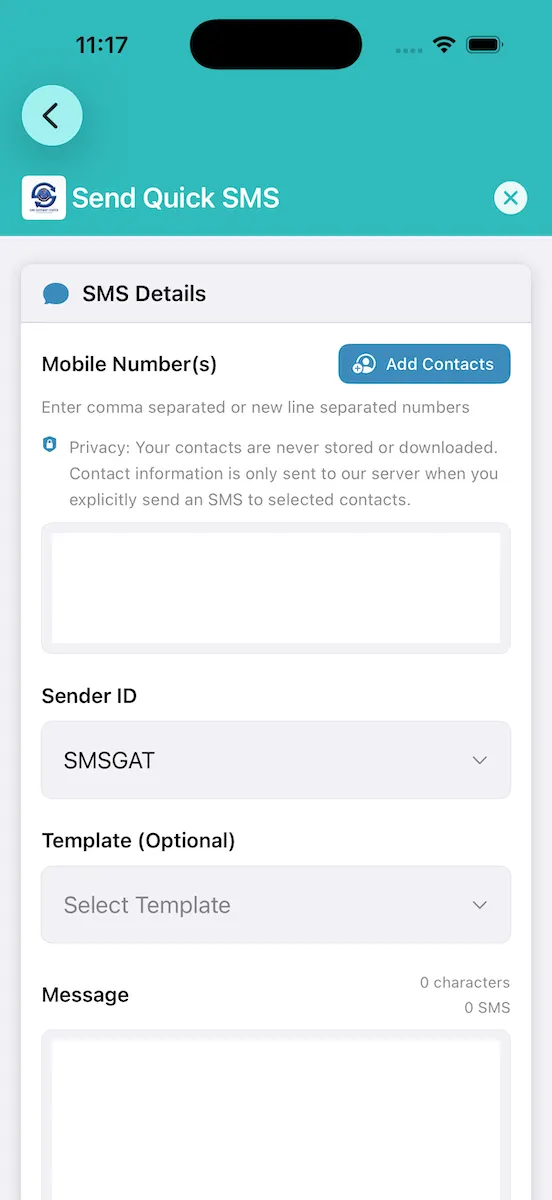
Steps to Send Quick SMS #
Step 1: Open the App #
- Launch SMS Gateway Center app from your home screen
- Ensure you’re logged in to your account
- If not logged in, see: How to Log In to Your Account
Step 2: Navigate to Quick SMS #
- From the main menu/dashboard, tap on “Quick SMS” or “Send SMS”
- The Quick SMS screen will open with:
- Recipient number field
- Message text area
- Send button
Step 3: Enter Recipient Number #
Option A: Manual Entry
- Tap the “To” or recipient field
- Enter the phone number in international format
- Correct format: +1234567890 (with country code)
- Example: +919876543210 for India
- Example: +14155551234 for USA
Option B: Select from Contacts
- Tap the contact icon (👤) next to the recipient field
- Select a contact from your device contacts
- The number will be automatically filled
Step 4: Compose Your Message #
- Tap the message text area
- Type your SMS message
- Watch the character counter:
- Standard SMS: 160 characters per message
- Long messages are automatically split
- Each part counts as one SMS
Tips for Writing Messages:
- Keep messages concise and clear
- Check spelling before sending
- Use abbreviations sparingly
Step 5: Review and Send #
- Double-check:
- Recipient number is correct
- Message content is accurate
- You have sufficient balance
- Tap the “Send” button
- Wait for confirmation:
- “SMS sent successfully” message appears
- Message status shows as “Pending” initially
Step 6: Check Delivery Status #
- After sending, the status will update automatically:
- Pending: SMS is queued for sending
- Sent: SMS has been sent to the gateway
- Delivered: SMS reached the recipient (usually within 1-5 minutes)
- Failed: SMS could not be delivered
- View detailed status in Reports/History
Platform-Specific Features #
iOS Users #
Siri Shortcuts:
- You can create Siri shortcuts for quick SMS sending
- Say “Hey Siri, send SMS” to launch Quick SMS screen
Contact Integration:
- Contact picker integrates seamlessly with iOS Contacts app
- Supports contact groups and favorites
Share Extension:
- Share text from other apps directly to SMSGatewayCenter
- Long-press text > Share > SMSGatewayCenter
Android Users #
Contact Integration:
- Contact picker integrates with Android Contacts
- Supports contact groups and recent contacts
Share from Other Apps:
- Share text from any app to SMSGatewayCenter
- Tap Share > SMSGatewayCenter
Quick Actions:
- Long-press app icon for quick actions (Android 7.1+)
- Direct access to Quick SMS screen
Understanding SMS Status #
After sending, you’ll see different status indicators:
| Status | Meaning | Action Required |
|---|---|---|
| Pending | SMS is queued for sending | Wait for status update |
| Sent | SMS sent to mobile network | Waiting for delivery confirmation |
| Delivered | SMS reached recipient’s device | ✅ Success – No action needed |
| Failed | SMS could not be delivered | Check number format and try again |
| Expired | Delivery attempt expired (24-48 hours) | Resend if needed |
For detailed information, see: Understanding Delivery Reports (DLR)
Tips for Successful SMS Sending #
Number Format #
- ✅ Always use international format: +[country code][number]
- ✅ Include country code: +1 for USA, +91 for India, etc.
- ❌ Don’t use: Local format without country code
- ❌ Don’t include: Spaces, dashes, or parentheses
Best Practices #
- Verify recipient number before sending
- Check account balance before sending bulk messages
- Save frequently used numbers as contacts
- Send during business hours for better delivery rates
- Monitor delivery reports to ensure messages are delivered
Character Limits #
- Standard SMS: 160 characters = 1 SMS
- Long messages: Automatically split into multiple SMS
- Example: 320 characters = 2 SMS messages
- Cost: Each SMS part is charged separately
Troubleshooting #
SMS Not Sending #
Problem: Tap Send but nothing happens or error appears.
Solutions:
- Check Internet Connection
- Ensure Wi-Fi or mobile data is enabled
- Try switching between Wi-Fi and mobile data
- Test connection by opening a website
- Verify Account Balance
- Go to Account/Balance section
- Ensure you have sufficient credits
- Recharge if balance is low
- Check Number Format
- Ensure number is in international format
- Remove spaces, dashes, or special characters
- Example: Use +1234567890, not (123) 456-7890
- Restart App
- Force close the app completely
- Reopen and try again
If issues persist, see: SMS Not Sending – Common Solutions
Character Limit Issues #
Problem: Message is too long or character count is confusing.
Solutions:
- Standard SMS limit: 160 characters
- Messages longer than 160 characters are split automatically
- Each part counts as one SMS
- Check character counter before sending
Contact Picker Not Working #
Problem: Can’t select contacts or contact picker doesn’t open.
Solutions:
- iOS: Settings > SMS Gateway Center > Contacts > Allow
- Android: Settings > Apps > SMSGatewayCenter > Permissions > Contacts > Allow
- Grant contact permission when prompted
- Restart app after granting permission