
The SMSGatewayCenter mobile app allows you to send SMS messages directly from your iPhone or iPad. This guide will walk you through the installation process step by step, ensuring you can start sending SMS messages quickly and easily.
Prerequisites #
Before installing the app, make sure you have:
- iPhone or iPad running iOS 13.0 or later
- Active internet connection (Wi-Fi or cellular data)
- Apple ID with App Store access
- At least 50MB of free storage space
Step-by-Step Installation #
Step 1: Open App Store #
- Tap the App Store icon on your iPhone or iPad home screen
- Ensure you’re signed in with your Apple ID
- If not signed in, tap your profile icon and sign in
Step 2: Search for the App #
- Tap the Search tab at the bottom of the App Store
- Type “SMS Gateway Center” in the search bar
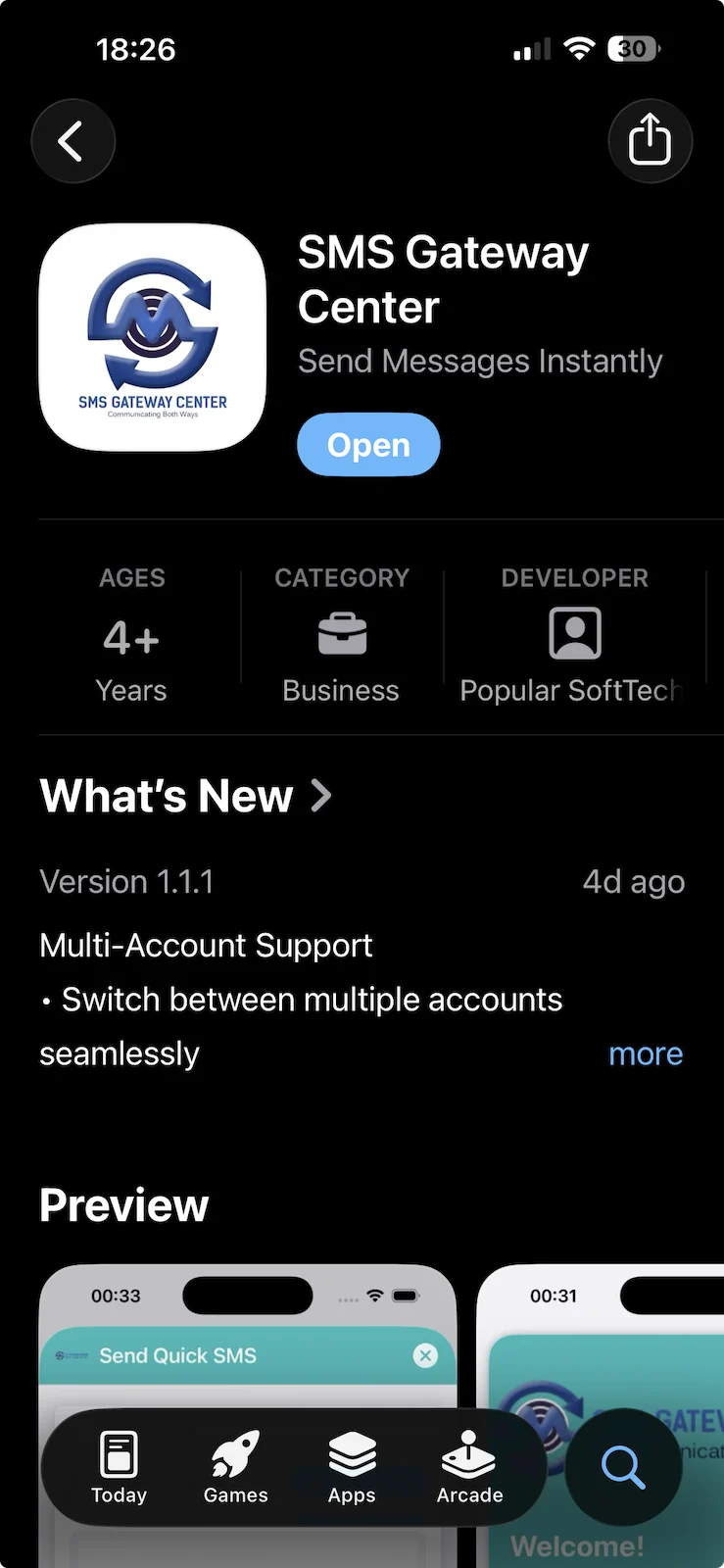
- Tap the app from the search results
- Look for the official SMS Gateway Center app with our logo
Step 3: Install the App #
- On the app page, tap the Get button (or cloud download icon if previously installed)
- Authenticate using:
- Face ID (iPhone X and later)
- Touch ID (older iPhones/iPads)
- Apple ID password (if biometrics not available)
- Wait for the installation to complete
- Progress indicator will show download status
Step 4: Open and Set Up #
- Tap the SMS Gateway Center icon on your home screen
- Grant necessary permissions when prompted:
- Notifications: Allow to receive delivery reports
- Network Access: Required for sending SMS
- You’re ready to log in and start using the app!
What’s Next? #
After installation, complete these steps:
- First Time Setup Guide
- How to Log In to Your Account
Troubleshooting #
App Not Found in App Store #
Problem: Can’t find SMS Gateway Center in App Store search results.
Solutions:
- Verify your device is running iOS 13.0 or later
- Check: Settings > General > About > Software Version
- Ensure you’re searching in the correct App Store region
- Try searching with exact spelling: “SMSGatewayCenter” (no spaces)
- Check your internet connection
Installation Fails or Stuck #
Problem: App download doesn’t complete or gets stuck.
Solutions:
- Check available storage space
- Settings > General > iPhone Storage
- Free up space if less than 100MB available
- Restart your device:
- Hold power button, then slide to power off
- Wait 30 seconds, then power on
- Check App Store connection:
- Try switching between Wi-Fi and cellular data
- Clear App Store cache:
- Force close App Store and reopen
Permission Issues #
Problem: App asks for permissions repeatedly or doesn’t work properly.
Solutions:
- Go to Settings > SMSGatewayCenter
- Enable all required permissions:
- Notifications
- Network Access
- If issues persist, see: iOS Permission Issues and Solutions
System Requirements #
- iOS Version: iOS 13.0 or later
- Device: iPhone 6s or later, iPad (5th generation) or later
- Storage: 50MB free space
- Internet: Wi-Fi or cellular data connection required
Related Articles #
- System Requirements for Mobile App
- First Time Setup Guide
- How to Update App from App Store
Found this useful?Add as Preferred Source on Google