
The SMSGatewayCenter mobile app allows you to send SMS messages directly from your Android device. This guide will walk you through the installation process step by step, from downloading from Google Play Store to setting up the app for first use.
Prerequisites #
Before installing the app, make sure you have:
- Android device running Android 8.0 (API level 26) or later
- Active internet connection (Wi-Fi or mobile data)
- Google account with Play Store access
- At least 50MB of free storage space
- Google Play Services installed and updated
Step-by-Step Installation #
Step 1: Open Google Play Store #
- Tap the Play Store icon on your Android device
- Ensure you’re signed in with your Google account
- If not signed in, tap the profile icon and sign in
- You need a Google account to download apps
Step 2: Search for the App #
- Tap the search bar at the top of the Play Store
- Type “SMSGatewayCenter” in the search field
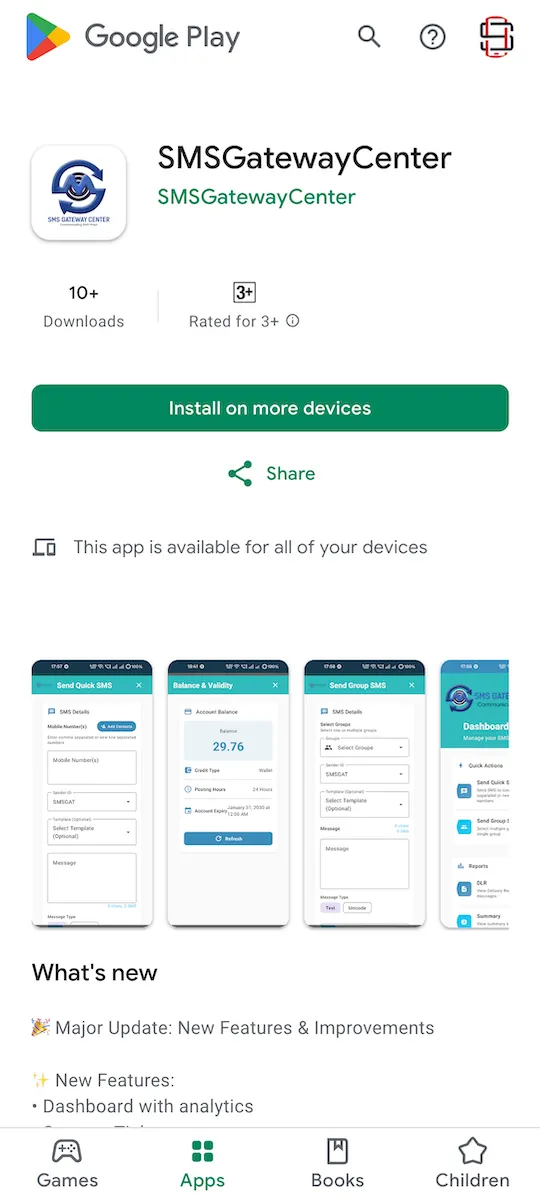
- Tap the app from the search results
- Look for the official SMSGatewayCenter app with our logo
- Verify it’s published by SMSGatewayCenter
Step 3: Install the App #
- On the app page, tap the “Install” button
- Review the permissions if prompted:
- Internet: Required for sending SMS
- Contacts: Optional, for contact picker feature
- Notifications: For delivery reports
- Tap “Accept” or “Install” to proceed
- Wait for the installation to complete
- Progress indicator shows download and installation status
- Usually takes 30 seconds to 2 minutes depending on connection
Step 4: Open and Set Up #
- Tap “Open” from Play Store, or
- Tap the SMSGatewayCenter icon from your app drawer/home screen
- Grant necessary permissions when prompted:
- Allow SMSGatewayCenter to access your contacts? (Optional – tap Allow or Deny)
- Allow notifications? (Recommended – tap Allow)
- You’re ready to log in and start using the app!
What’s Next? #
After installation, complete these steps:
- First Time Setup Guide
- How to Log In to Your Account
Troubleshooting #
App Not Found in Play Store #
Problem: Can’t find SMSGatewayCenter in Play Store search results.
Solutions:
- Verify your device is running Android 8.0 or later
- Check: Settings > About Phone > Android Version
- Ensure you’re searching in the correct Play Store region
- Try searching with exact spelling: “SMSGatewayCenter” (no spaces)
- Check your internet connection
- Clear Play Store cache: Settings > Apps > Play Store > Storage > Clear Cache
Installation Fails or Gets Stuck #
Problem: App download doesn’t complete or installation fails.
Solutions:
- Check Storage Space:
- Settings > Storage > Check available space
- Free up space if less than 100MB available
- Delete unused apps or files
- Check Internet Connection:
- Ensure Wi-Fi or mobile data is enabled
- Try switching between Wi-Fi and mobile data
- Move to area with better signal
- Clear Play Store Cache:
- Settings > Apps > Play Store > Storage
- Tap “Clear Cache”
- Restart Play Store and try again
- Restart Device:
- Power off your device completely
- Wait 30 seconds
- Power on and try installing again
“Device Not Compatible” Error #
Problem: Play Store shows “Your device isn’t compatible with this version.”
Solutions:
- Check Android version: Settings > About Phone > Android Version
- Minimum required: Android 8.0 (Oreo) or later
- Update Android if possible: Settings > System > System Update
- If device can’t be updated, it may not support the app
Permission Issues #
Problem: App asks for permissions repeatedly or doesn’t work properly.
Solutions:
- Go to Settings > Apps > SMSGatewayCenter > Permissions
- Enable required permissions:
- Internet: Required (usually auto-granted)
- Contacts: Optional, enable if you want to use contact picker
- Notifications: Recommended, enable for delivery reports
- If issues persist, see: Android Permission Issues and Solutions
Google Play Services Error #
Problem: “Google Play Services is required” error message.
Solutions:
- Update Google Play Services:
- Open Play Store
- Search for “Google Play Services”
- Tap “Update” if available
- Enable Google Play Services:
- Settings > Apps > Google Play Services
- Ensure it’s enabled and not disabled
System Requirements #
- Android Version: Android 8.0 (API level 26) or later
- Device: Any Android device meeting minimum OS requirement
- Storage: 50MB free space minimum
- Internet: Wi-Fi or mobile data connection required
- Google Play Services: Must be installed and updated
Security Notes #
- Only download from official Google Play Store
- Verify app publisher is “SMSGatewayCenter”
- Don’t download from third-party app stores
- Keep app updated to latest version for security patches
Found this useful?Add as Preferred Source on Google